1. Project Overview
ContactSails is a desktop application targeted at salespersons who want to manage their customer contacts, sales orders, and calendar events in an efficient manner. The user interacts with it using a CLI, and it has a GUI created with JavaFX. It is written in Java, and has about 10 kLoC.
2. About this Portfolio
This project portfolio documents my contributions to ContactSails by including a summary of features implemented by me in the project. It also showcases my documentation skills by including relevant extracts written by me in the UserGuide and DeveloperGuide for this project.
3. Summary of Contributions
Major enhancement: added the ability to manage customer orders.
-
Functionality: Orders can be added, edited, and deleted. A list of current orders can be viewed. Orders can also be marked as ongoing or fulfilled.
-
Justification: This feature will be essential for salespersons as they would want to keep track of customer orders. Salespersons will be able to view relevant information about customer orders in a single place.
-
Highlights: This enhancement required an in-depth analysis of design alternatives. The implementation too was challenging as it required changes to existing model and UI of the application. Additionally, this enhancement will affect commands to be implemented in the future.
Minor enhancement: added the ability to switch between themes provided in the application.
-
Functionality: Theme of the application can be switched between 'light' or 'dark' themes.
-
Justification: This feature will allow salespersons to customize the application to suit their needs.
Code contributed: [Functional code] [Test code]
Other contributions:
-
Project management:
-
Managed releases
v1.2-v1.5rc(4 releases) on GitHub.
-
-
Enhancements to existing features:
-
Documentation:
-
Community:
4. Contributions to the User Guide
Given below are sections I contributed to the User Guide. They showcase my ability to write documentation targeting end-users. |
4.1. Major Enhancement : Order Management
This section contains extracts from the UserGuide related to order management.
Start of Extract (from User Guide)
Managing Orders
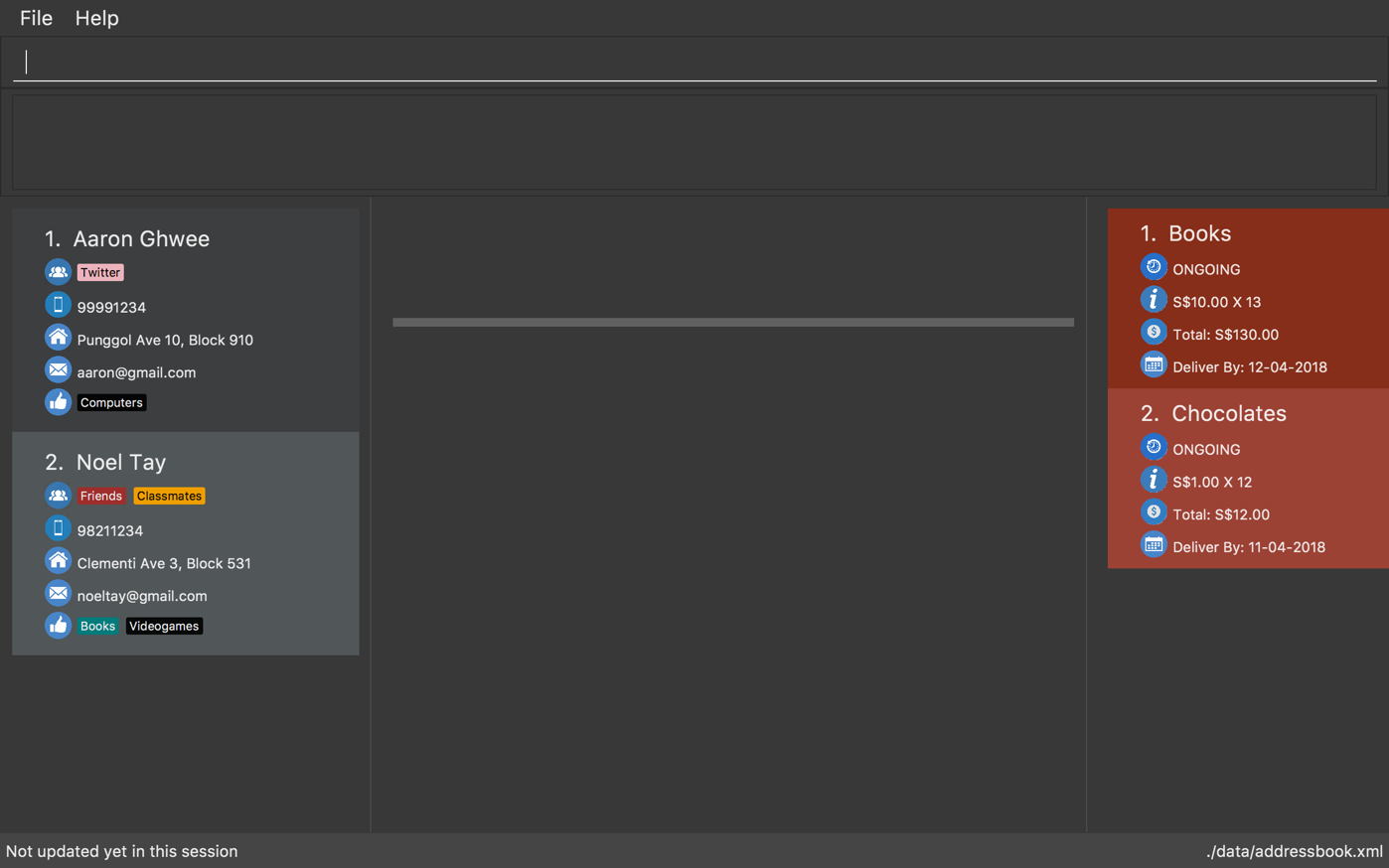
This section describes commands you can use to manage order entries in ContactSails. The figure below shows how ContactSails looks currently.
Adding an order : orderadd since v1.2
Description: Adds an order to the person specified by the index number used in the last person listing.
Command Alias: oa
Example:
Type orderadd 2 i/NBA 2k18 pr/59.99 q/1 d/14-04-2018 OR
orderadd 2 i/NBA 2k18 pr/59.99 q/1 d/14-04-2018 into the Command Box.
This adds the NBA 2k18 order to Noel Tay, the 2nd person, as shown in the figure below.
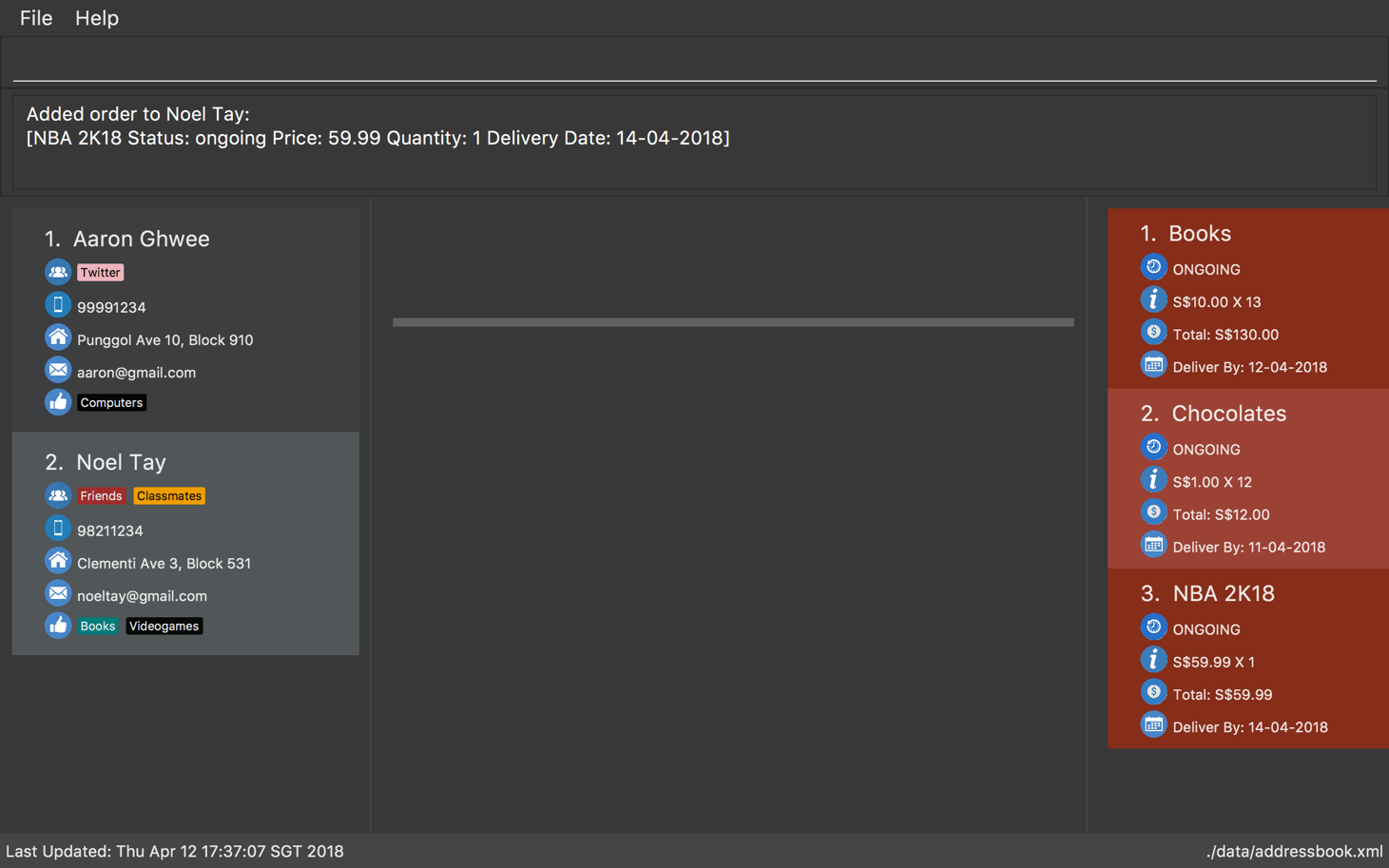
Currently, the orders added will be shown in the list of all orders in the Right Panel. This means that orders with same
fields can’t be added to multiple persons yet. We are planning to add this ability, and the ability to view orders of a
person in their PersonPanel in v2.0.
|
Editing an order : orderedit since v1.2
Description: Edits the order specified by the index number used in the order listing.
Command Alias: oe
Example:
ContactSails currently has the following order:
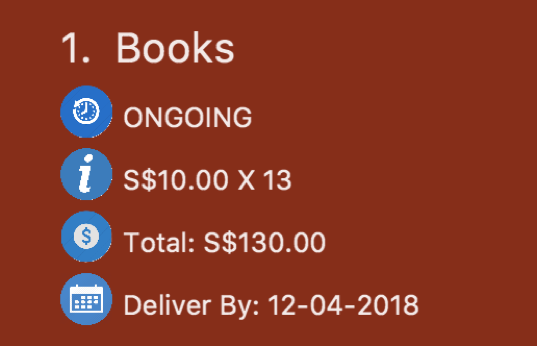
To edit the order above, execute the following command:
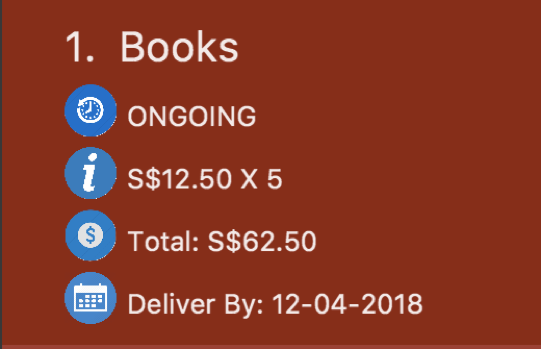
Type orderedit 1 pr/12.50 q/5 OR oe 1 pr/12.50 q/5 into the Command Box.
This edits the price and quantity fields of Books, the 1st order, to be 12.50 and 5 respectively. The result is shown in the figure below.
Changing the order status : orderstatus since v1.4
Description: Changes the order status of the order specified by the index number used in the order listing.
Command Alias: os
Example:
Type orderstatus 1 os/done OR os 1 os/done into the Command Box.
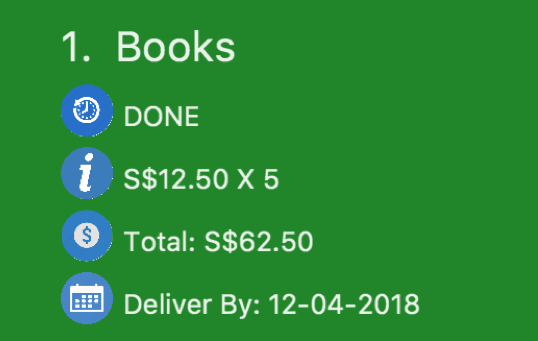
This marks the order status of Books, the 1st order in the order list as done. The figure below shows how the UI updates after executing the command above.
Deleting an order : orderdelete since v1.2
Description: Deletes the order specified by the index number used in the order listing.
Command Alias: od
Example:
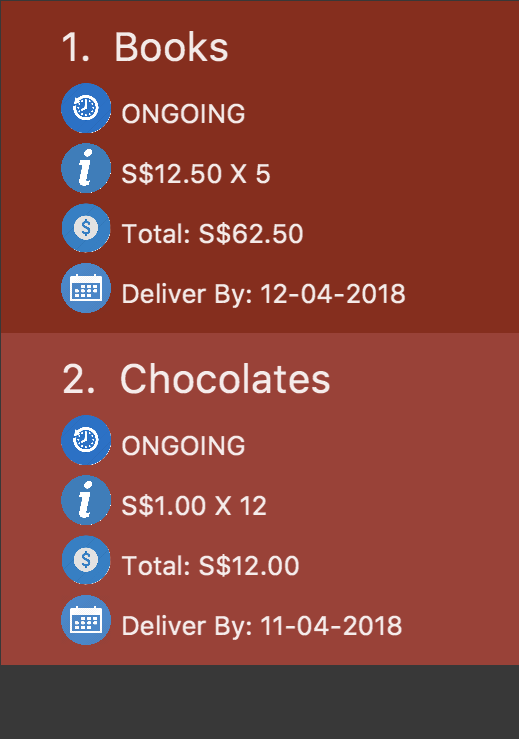
The figure below shows the current order list in the application:
Type orderdelete 1 OR od 1 into the Command Box.
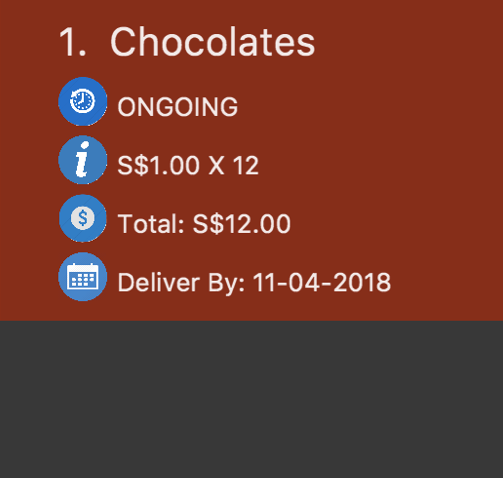
This deletes Books, the 1st order in the order list from ContactSails. The updated order list is shown below.
End of Extract (from User Guide)
4.2. Minor Enhancement : Change Themes
This section contains extracts from the UserGuide related to changing themes.
Start of Extract (from User Guide)
Changing the theme : theme since v1.3
Description: Changes the theme of the application.
Command Alias: t
Examples:
Type theme light OR t light into the Command Box.
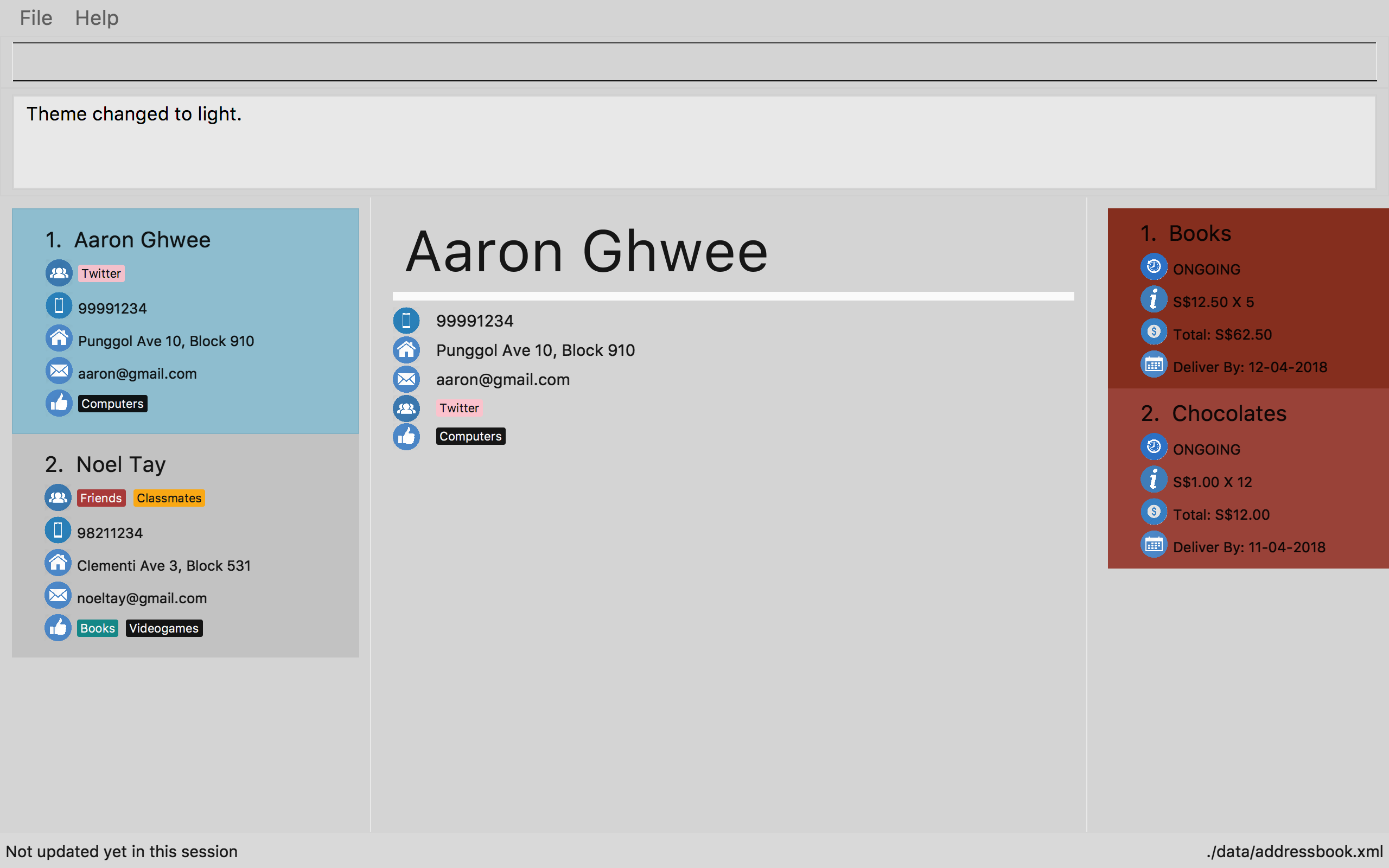
This changes the theme of the application to light. The figure below shows the ContactSails UI with the light theme.
Start of Extract (from User Guide)
5. Contributions to the Developer Guide
Given below are sections I contributed to the Developer Guide. They showcase my ability to write technical documentation and the technical depth of my contributions to the project. |
5.1. Major Enhancement : Order Management
This section contains extracts from the DeveloperGuide related to order management.
Start of Extract 1 (from Developer Guide)
Order Management
Orders refer to the sales orders that are added by the salesperson to ContactSails.
These orders can be added to any particular person of the address book.
After being added, orders can be edited and deleted. Additionally, orders can be marked as ongoing and done.
Current Implementation
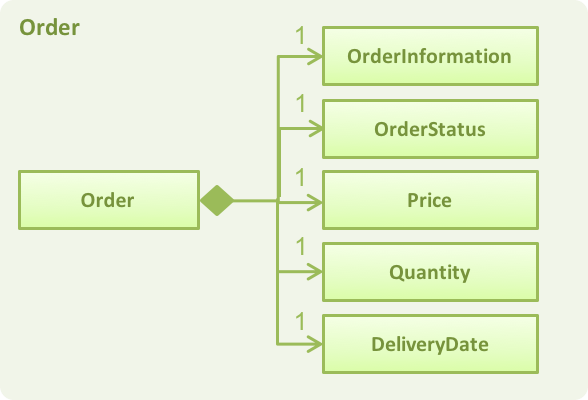
An Order is represented in the application as shown in the figure given below.
It contains the OrderInformation, OrderStatus, Price, Quantity, and DeliveryDate fields.
Order objects are kept in-memory during an application session with the help of a UniqueOrderList object, whose UML diagram is given below.
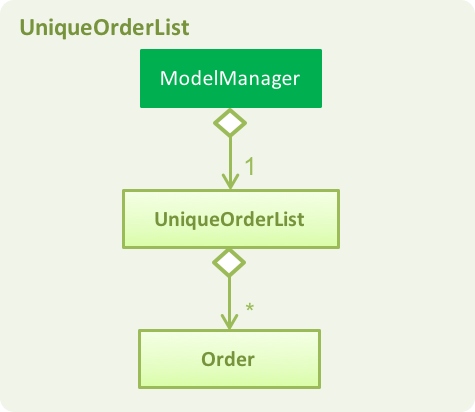
The UniqueOrderList object ensures that ContactSails does not have any duplicate Order objects. This object is stored in the ModelManager.
The ModelManager utilises the UniqueOrderList object for order management related operations.
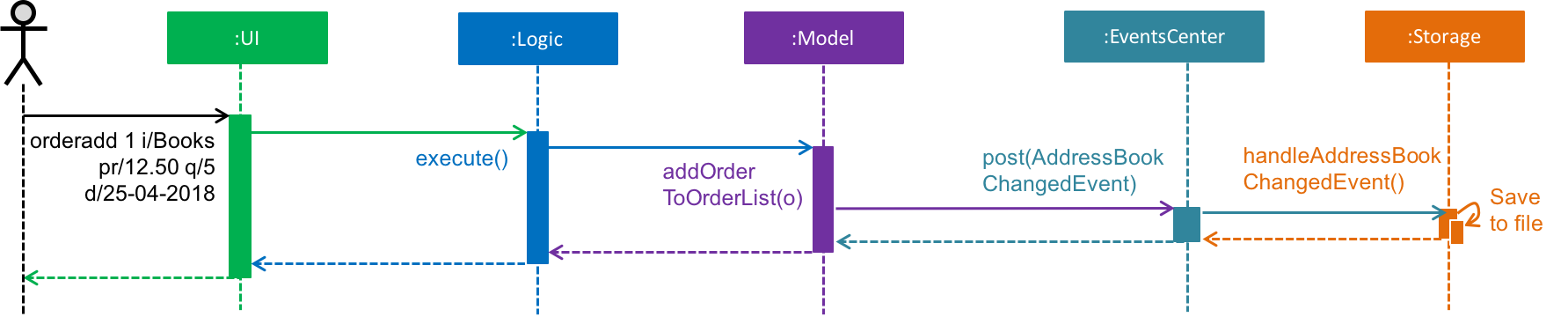
An example operation would be adding an order to ContactSails.
Given below is a high-level sequence diagram for this operation.
Operations on orders can be done using the AddOrderCommand, EditOrderCommand, ChangeOrderStatusCommand, and DeleteOrderCommand commands.
The class diagram given below shows how these commands are part of the Logic Component.
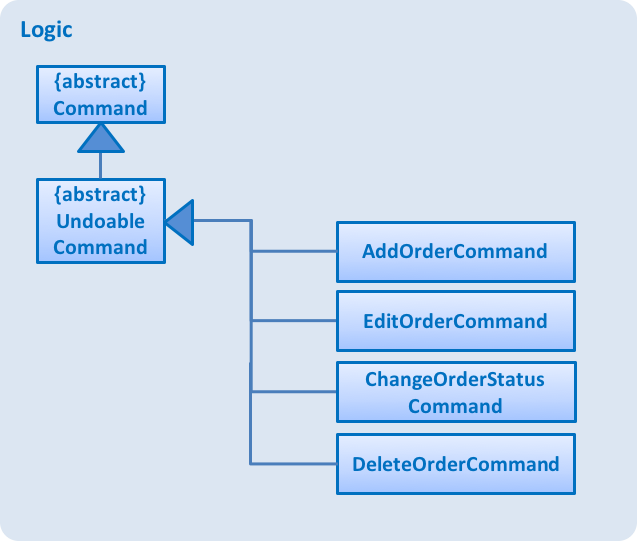
Logic component.These commands are described in more detail in the sections below.
End of Extract 1 (from Developer Guide)
Start of Extract 2 (from Developer Guide)
Adding Orders
The AddOrderCommand adds an order to list of orders in ContactSails.
The figure below shows the sequence diagram for adding an order.
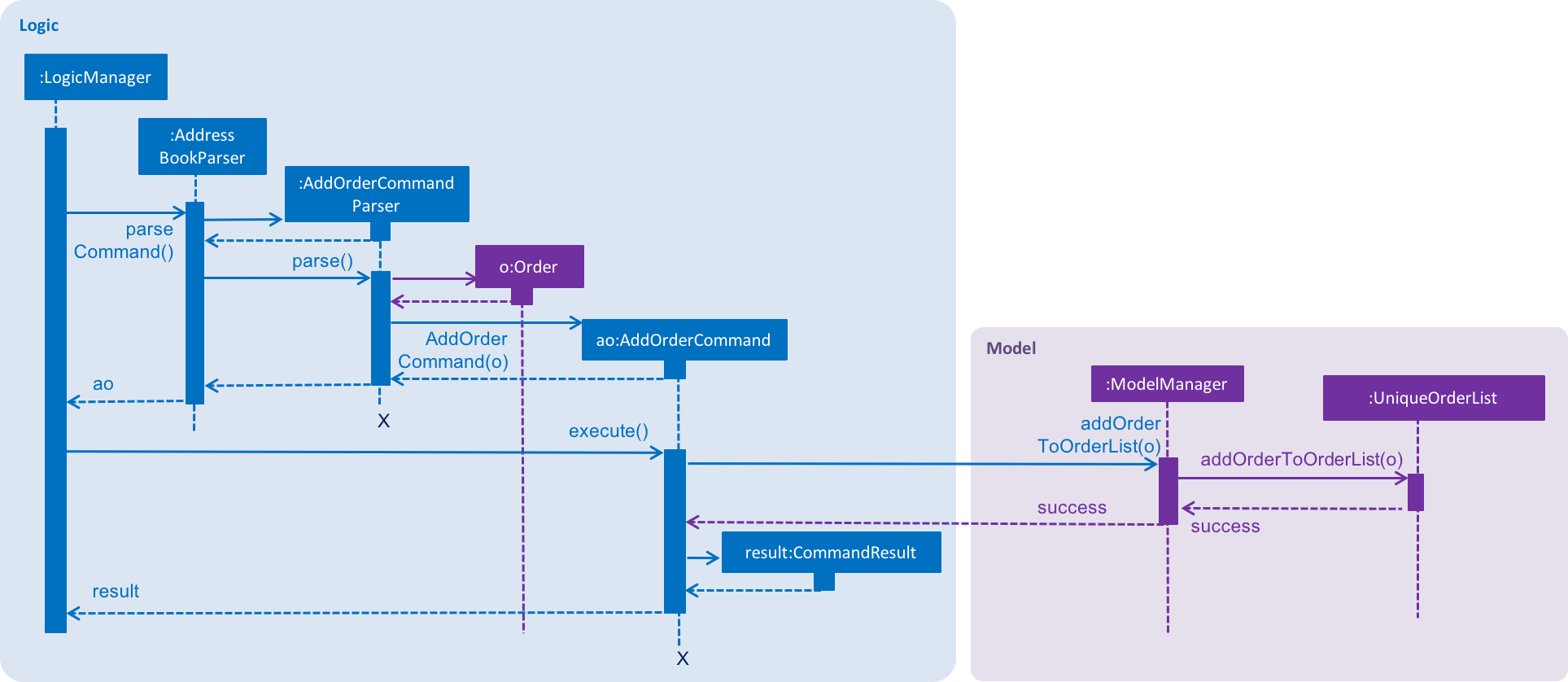
AddOrderCommand.The following snippet shows how the AddOrderCommand#executeUndoableCommand() method updates the model of the
application by adding orderToAdd to the list of orders in the application. Note that orderToAdd will
not be added if a duplicate order has already been added to the list of orders before.
public class AddOrderCommand extends UndoableCommand {
    public CommandResult executeUndoableCommand() throws CommandException {
        requireNonNull(model);
        try {
            model.addOrderToOrderList(orderToAdd);
        } catch (DuplicateOrderException e) {
            throw new CommandException(MESSAGE_ORDER_NOT_ADDED);
        }

        // ... display updated address book ...
    }
}
The order added will be displayed in the OrderListPanel in ContactSails.
End of Extract 2 (from Developer Guide)
Start of Extract 3 (from Developer Guide)
Design Considerations
Aspect: Data structures to support order operations
-
Alternative 1 (current choice): Store a UniqueOrderList of orders containing orders of all persons in the application.
-
Pros: Easier to implement. Additionally, all order management operations will be synchronised.
-
Cons: Higher memory usage might affect the performance of the application.
-
-
Alternative 2: Using an association class to store multiple references to the same order.
-
Pros: Duplicate orders (with the same information except the person associated with it) will just be stored as a single order in memory. If multiple persons have the same order, there will be multiple references to one Order object. This reduces memory usage.
-
Cons: Harder to implement as updating or deleting orders for one person must not affect orders of another person having the same order.
-
End of Extract 3 (from Developer Guide)
5.2. Minor Enhancement : Change Themes
This section contains extracts from the DeveloperGuide related to changing themes.
Start of Extract (from Developer Guide)
Changing Themes
The theme of ContactSails can be changed using the ChangeThemeCommand.
Currently, ContactSails supports dark and light themes.
Current Implementation
The Theme object in the model is used to store the current theme version.
The figure below shows the hierarchy of the Theme class.
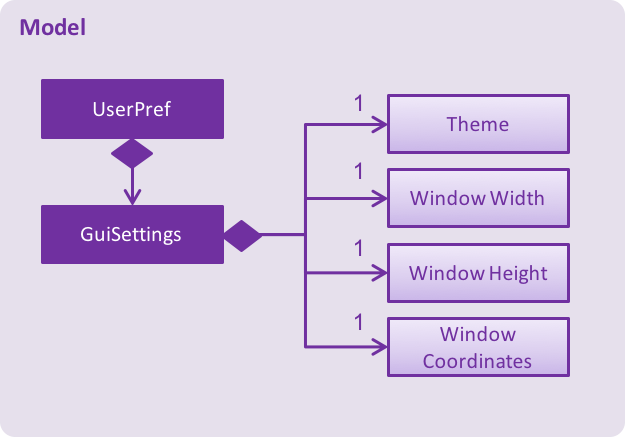
Model component with the Theme class.When the ChangeThemeCommand is executed, a ChangeThemeEvent is raised by EventsCenter.
The handleChangeThemeEvent() method in the `MainWindow
class subscribes to this particular event and calls the handleChangeTheme() FXML controller method. This method changes the theme of the application based on the
theme version it receives as a parameter. This is done by attaching the corresponding CSS stylesheet to the MainWindow JavaFX scene of the application.
Given below is a high level sequence diagram for the ChangeThemeCommand.
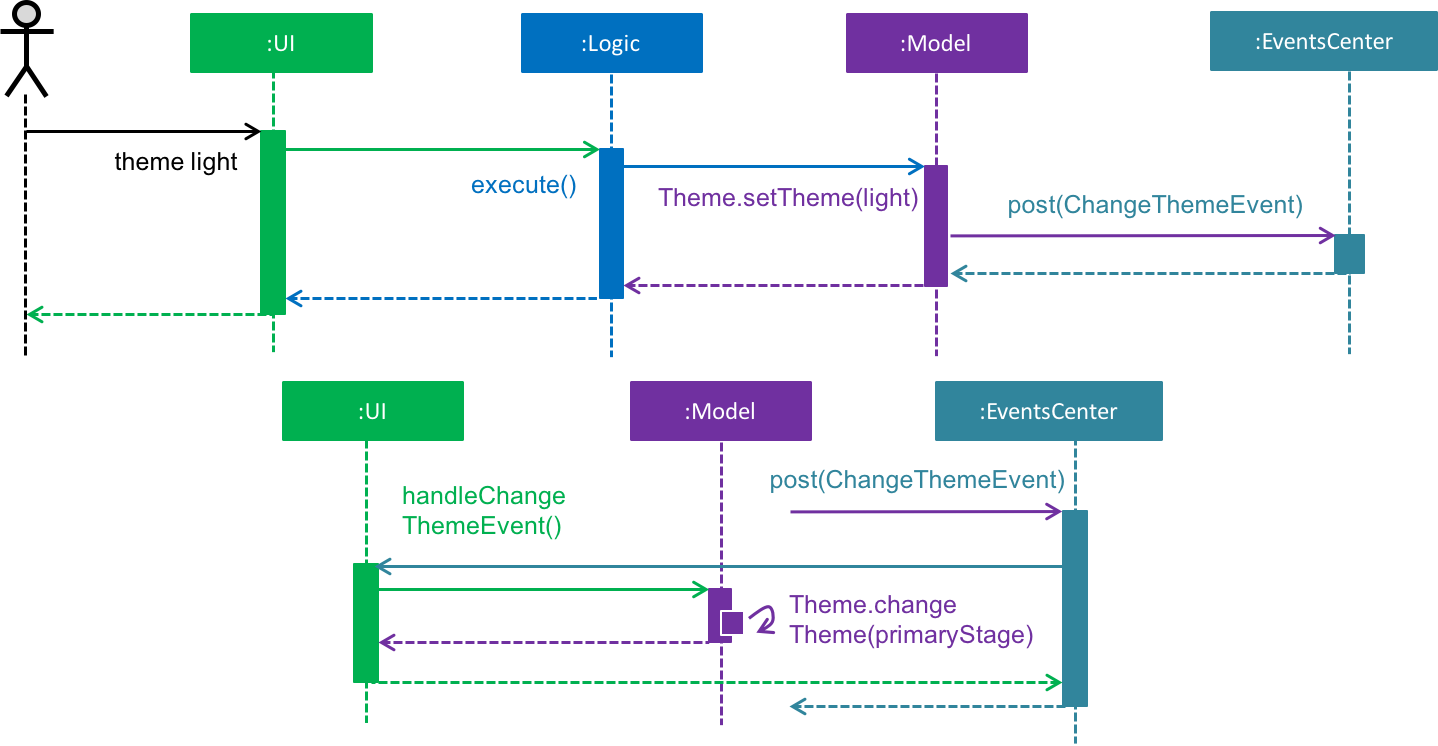
ChangeThemeCommand.When the user exits the application, the current theme version will be stored in the preferences.json file as shown in the code snippet below.
{
  "guiSettings" : {
        // ... guiSettings attributes ...
    },
    "theme" : "dark"
  },
  // ... file management attributes ...
}
Storing the theme in the preferences.json enables the theme change to be persistent across different application sessions.
Design Considerations
Aspect: Storing theme version
-
Alternative 1 (current choice): Encapsulate the theme version in a
Themeobject.-
Pros: Relevant attributes and methods will be encapsulated in a single class.
-
Cons: Higher memory overhead.
-
-
Alternative 2: Storing the theme version as a string in guiSettings.
-
Pros: Easier to implement, and lesser memory overhead.
-
Cons: Methods related to changing themes would have to be written in multiple classes.
-
End of Extract (from Developer Guide)
Appendix A : Other Sections in UserGuide
Given below are other sections I contributed to the User Guide. |
A.1. Proposed Feature : Viewing Customer Statistics
This section contains extracts from the UserGuide related to a proposed feature for displaying customer statistics.
Start of Extract (from User Guide)
Viewing Customer Statistics
One of the features we are planning to add in ContactSails v2.0 is the ability to view relevant statistics regarding your customers and sales orders.
The command descriptions for these features are given below.
Viewing top customers : topcustomers coming in v2.0
Description: Displays a list of the top customers based on the frequency their contacts are accessed.
Command Alias: tc
Example:
Type topcustomers 10 OR tc 10 into the Command Box.
This displays the list of the top ten persons in ContactSails based on how frequently you access these contacts.
Viewing top customers : topitems coming in v2.0
Description: Displays a list of the top items based on amount of items that have been sold to customers.
Command Alias: ti
Example:
Type topitems 10 OR ti 10 into the Command Box.
This displays the list of the top ten items in ContactSails based on how many of the items have been sold.
End of Extract (from User Guide)
A.2. Proposed Feature : Sending Promotions
This section contains extracts from the UserGuide related to a proposed feature for sending promotions to customers.
Start of Extract (from User Guide)
Sending Promotions
Another proposed feature we are planning to implement is the ability to send promotions to multiple customers based on their groups or preferences. The command descriptions for these features are given below.
Sending promotions based on group : sendpromogroup coming in v2.0
Description: Opens a promotion email draft in the browser, which can be sent to multiple persons having the same group tags.
Command Alias: spg
Example:
Type sendpromogroup friends sub/New Offer on Sunglasses OR
spg friends sub/New Offer on Sunglasses into the Command Box.
This opens an email draft in the browser with recipients as all persons tagged as 'friends' and subject as 'New Offer on Sunglasses'.
Sending promotions based on preference : sendpromopref coming in v2.0
Description: Opens a promotion email draft in the browser, which can be sent to multiple persons having the same preference tags.
Command Alias: spp
Example:
Type sendpromopref books sub/Books on SALE OR
spp books sub/Books on SALE into the Command Box.
This opens an email draft in the browser with recipients as all persons tagged with 'books' and subject as 'Books on SALE'.
End of Extract (from User Guide)
Appendix B : Other Sections in DeveloperGuide
Given below are other sections I contributed to the Developer Guide. |
B.1. Major Enhancement : Order Management
This section contains other extracts from the DeveloperGuide related to order management.
Start of Extract (from Developer Guide)
Editing Orders
The EditOrderCommand edits the targetOrder with the provided information which is specified by its index
in the last shown listing of orders. The order will be updated with the new values given by the user.
The figure below shows the sequence diagram for editing an order.
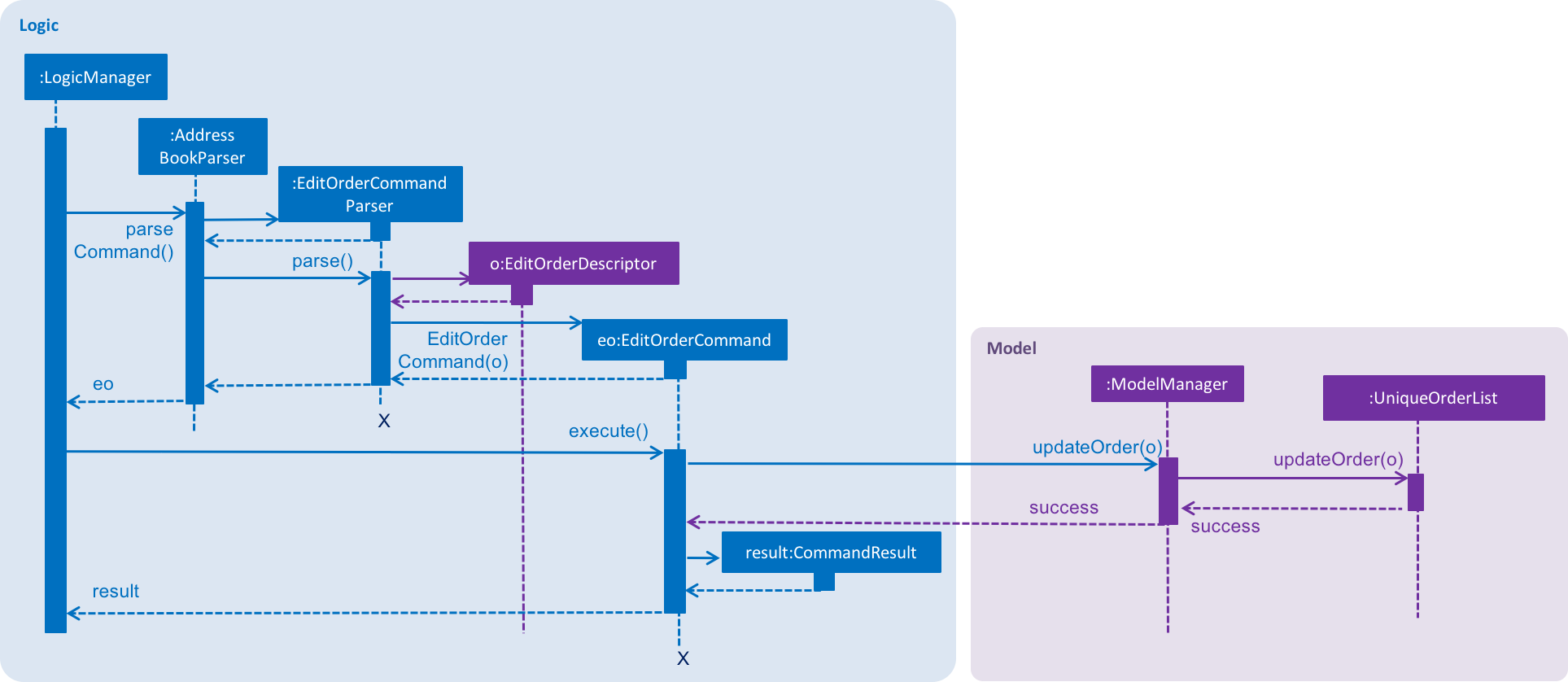
EditOrderCommand.In the EditOrderCommand class, a new class called EditOrderDescriptor is defined to create objects
that will store the new values of the fields that need to be edited in the original order.
The createEditedOrder() method uses the editOrderDescriptor object to create the editedOrder
object.
The executeUndoableCommand() method uses this editedOrder object to update the model of the application.
The new order is now stored in ContactSails in the place of the old order.
Changing OrderStatus
The ChangeOrderStatusCommand changes the OrderStatus field of an Order object to either ongoing or done.
The order object is obtained by using its index in the last shown listing of orders.
The figure below shows the sequence diagram for changing an order’s status.
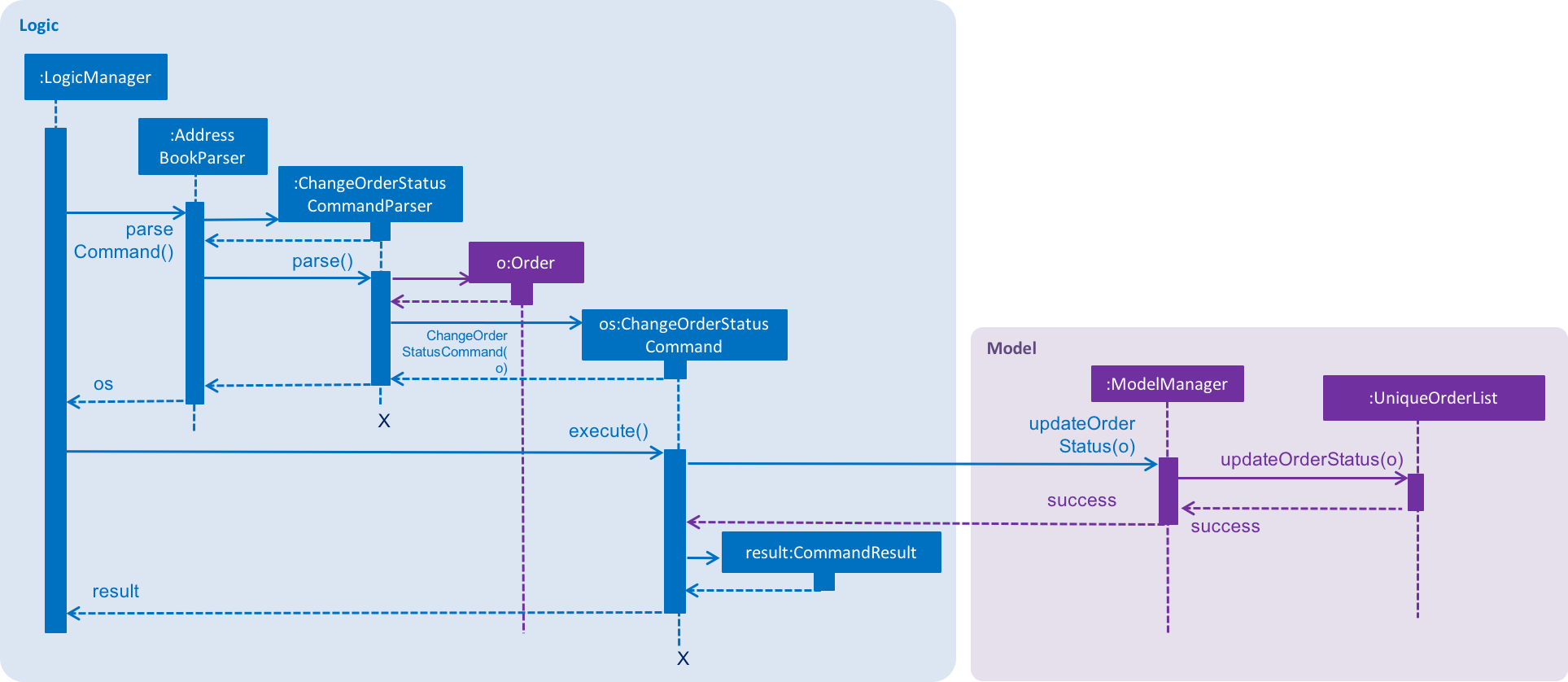
ChangeOrderStatusCommand.On changing the order status of an order, the colour of the corresponding OrderCard in the OrderListPanel also changes.
This is done by simply removing the existing CSS styles associated with the OrderCard
and re-adding a new stylesheet with the appropriate colours to that OrderCard.
Deleting Orders
The DeleteOrderCommand deletes the order specified by its index in the last shown listing of orders.
The figure below shows the sequence diagram for changing an order’s status.
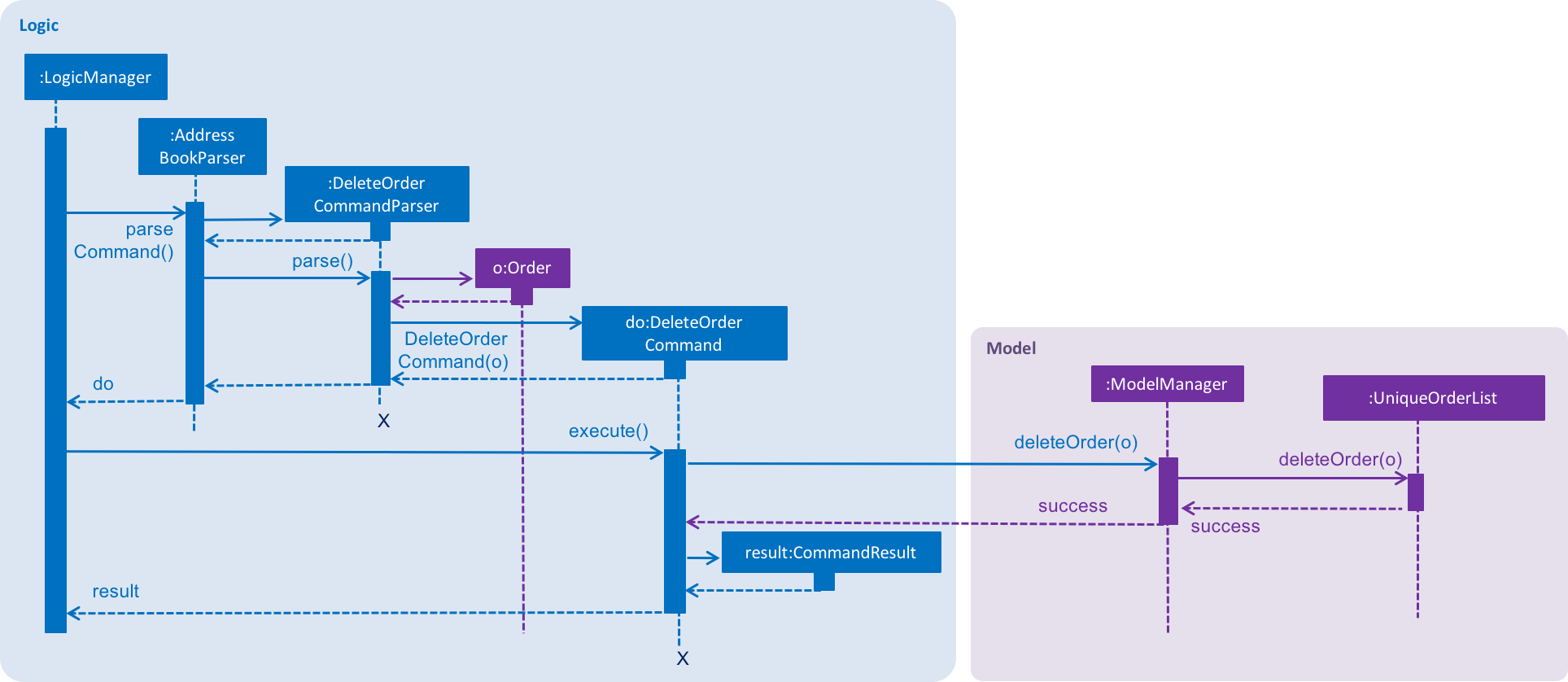
DeleteOrderCommand.The above method deletes orderToDelete from the model of the address book and the resulting list of orders is displayed.
Storing Orders
Storing orders in the application data file is very similar to that of storing persons.
The XmlAdaptedOrder class is used to convert the Order objects in the model to JAXB-friendly XmlAdaptedOrder objects
that can be stored in the .xml data file. When the application starts up, this class is also used to convert the XmlAdaptedOrder objects
into a model-friendly Order objects.
Displaying Orders In GUI
A single Order is displayed using an OrderListCard. The list of all orders in the address book is then displayed in a list
using the OrderListPanel, which contains an OrderListView of multiple OrderListCards.
End of Extract (from Developer Guide)
B.2. Proposed Feature : Data Encryption
This section contains extracts from the DeveloperGuide related to a proposed feature for encrypting application data.
Start of Extract (from Developer Guide)
Proposed Implementation
The address book will decrypt and encrypt the XML data file every time there is an update that needs to be made to the data being stored.
The secret key for encryption/decryption will be generated using the KeyGenerator class in the javax.crypto library.
The actual encryption/decryption will be done using the org.apache.xml.security library, specifically the XMLCipher class.
Design Considerations
Aspect: Time of encryption of XML data file
-
Alternative 1: Encrypt/decrypt the whole file each time there is an update to what information needs to stored.
-
Pros: A new secret key can be used for each encryption/decryption, which would make it more secure against tampering or outsider access.
-
Cons: Encryption of data file for every minor change can reduce the performance of the application.
-
-
Alternative 2: Encrypt/decrypt the file only after a set time interval.
-
Pros: Performance will be improved.
-
Cons: Approach might be less secure. Implementation can also be harder.
-
End of Extract (from Developer Guide)