Overview
ContactSails is built upon AddressBook - Level 4. It is a desktop application used for people in sales. The users will benefit from the application through the features in ContactSails such as having a calendar and managing orders. The user interacts with the application using Command Line Interface (CLI), and it has a GUI created with JavaFX. It is written in Java, and has about 10 kLoC.
Summary of contributions
-
Major enhancement: My major enhancement is the addition of a person panel in ContactSails.
-
What it does: It allows the user to see contacts' information in a neater and more detailed manner.
-
Justification: Sales people may want a better overview of their clients when making sales decisions. By introducing person panel in the application, this will aid the person in making better sales decisions by giving a better visual overview of the user through the size of the panel.
-
Highlights: This enhancement also show the groups and preferences the client have. A profile picture could have been added but because the implementation is too challenging, it may be a possible feature only in the future.
-
-
Minor enhancement: My minor enhancement is the addition of colours to groups and preferences.
-
Credits: The suggested enhancement in CS2103T appendix A aided me in this.
-
-
Code contributed: [Functional code] [Test code]
-
Other contributions:
-
Project management:
-
I have done my releases
v1.3-v1.5rcon GitHub.
-
-
Enhancements to existing features:
-
I have fixed a bug found by one of my team mate upon reviewing other bugs. (Pull request #185)
-
-
Documentation:
-
I have made a minor language update to the Developer Guide. (Pull request #195)
-
-
Community:
-
I have reported bugs and suggestions for other teams in the class. (#Issue 131, #Issue 134, #Issue 136, #Issue 137)
-
-
Contributions to the User Guide
Given below are sections I contributed to the User Guide. They showcase my ability to write documentation targeting end-users. |
I contributed partially to two sections in the User Guide, Managing Persons and Managing Groups and Preferences.
In the section of Managing Persons, I contributed through the addition of pictures and the writing of example.
Managing Persons
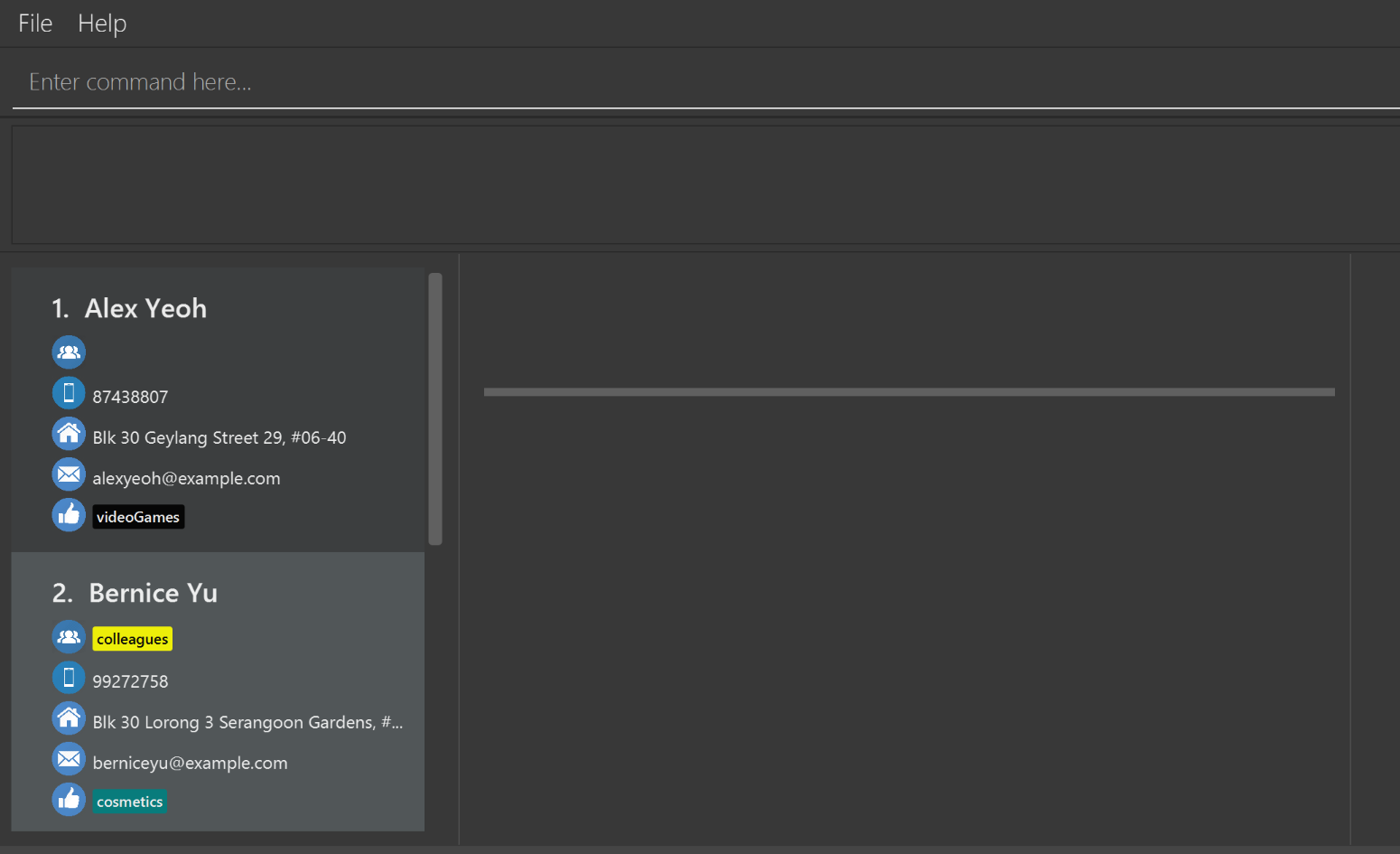
This section describes commands you can use to manage person entries in ContactSails. The figure below shows how ContactSails looks currently.
Adding a person : add
Description: Adds a person to ContactSails.
Command Alias: a
| A person can have any number of groups and preferences (including 0). |
Example:
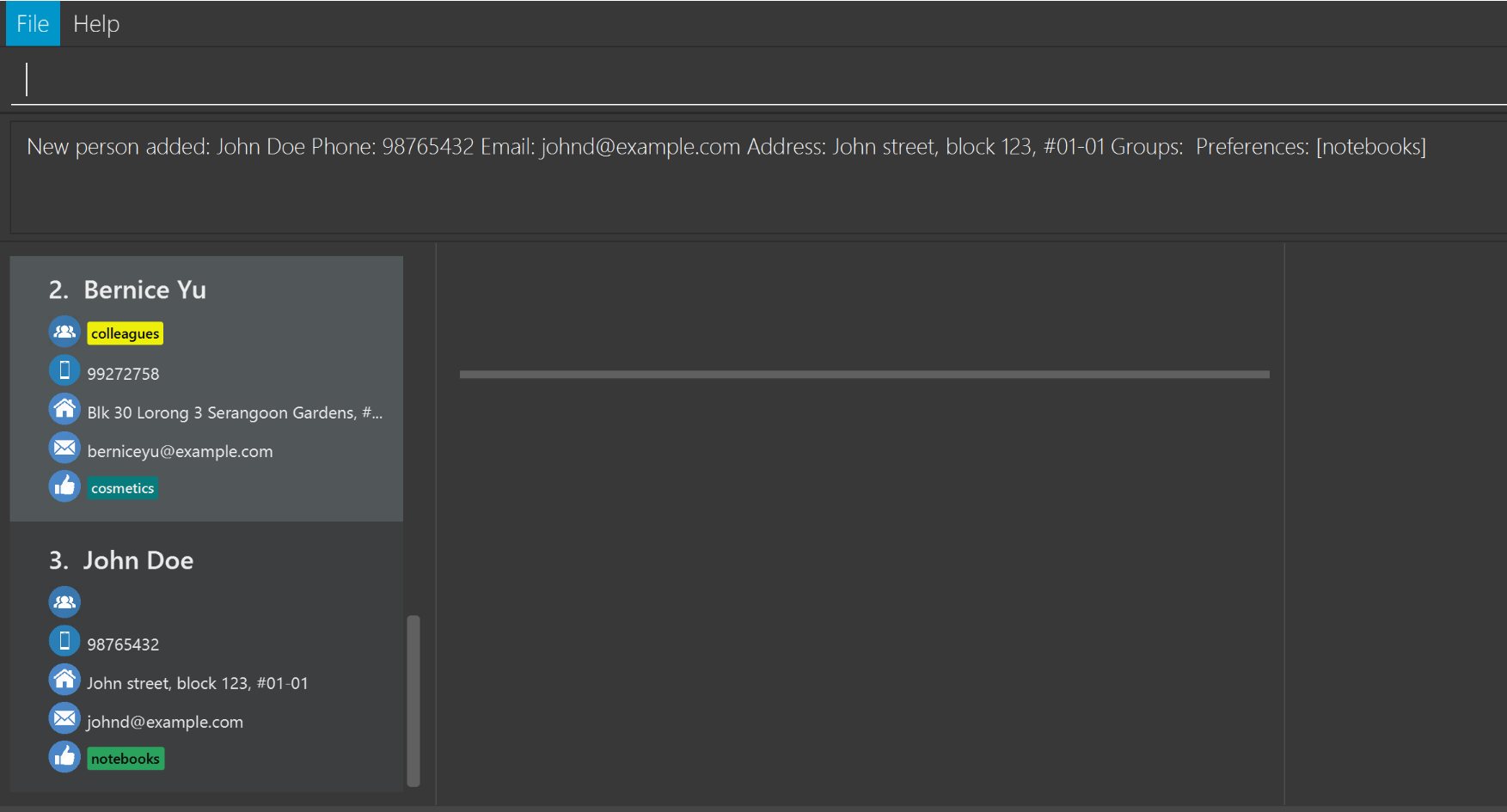
Type add n/John Doe p/98765432 e/johnd@example.com a/John street, block 123, #01-01 pr/notebooks OR
a n/John Doe p/98765432 e/johnd@example.com a/John street, block 123, #01-01 pr/notebooks into the Command Box.
This adds a contact John Doe, with 98765432 as phone number, johnd@example.com as email, John street, block 123, #01-01 as address,
and notebooks as a preference tag, as shown below.
Editing a person : edit
Description: Edits an existing person in ContactSails.
Command Alias: e
Example:
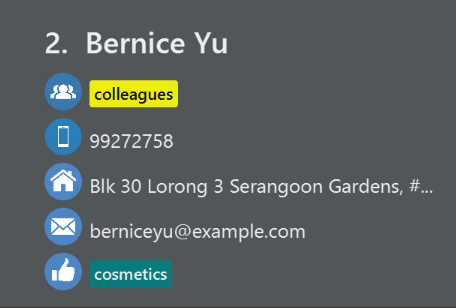
Here’s a picture of how the second contact in ContactSails looks currently:
Type edit 2 n/Betsy Crower g/ OR
e 2 n/Betsy Crower g/ into the Command Box.
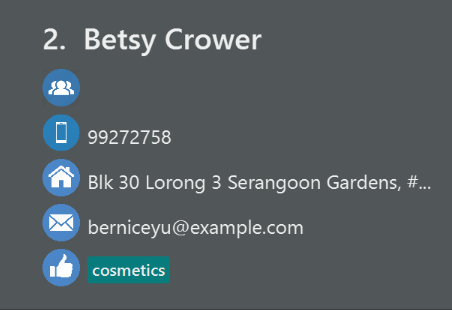
This edits the name of the 2nd person to be Betsy Crower and clears all existing groups.
The figure below shows the updated contact.
In the section of Managing Groups and Preferences, I contributed through the addition of pictures and the writing of example.
Managing Groups and Preferences
This section describes commands you can use to manage preference and group tags in ContactSails.
Deleting a group : groupdelete since v1.2
Description: Deletes the specified group from ContactSails.
Command Alias: gd
Example:
The figure below shows ContactSails, with the 1st contact selected.
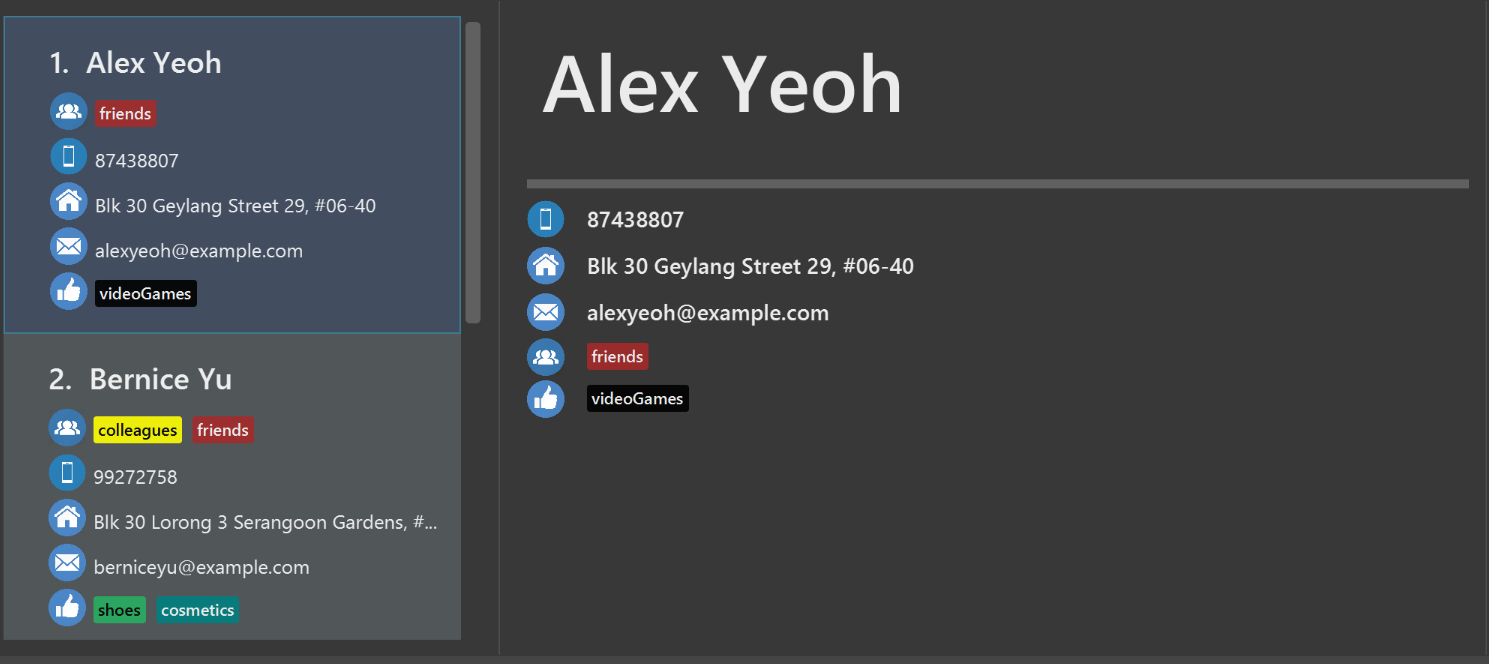
Type groupdelete friends OR gd friends into the Command Box.
All persons in ContactSails with the group friends will have the group removed from their contact.
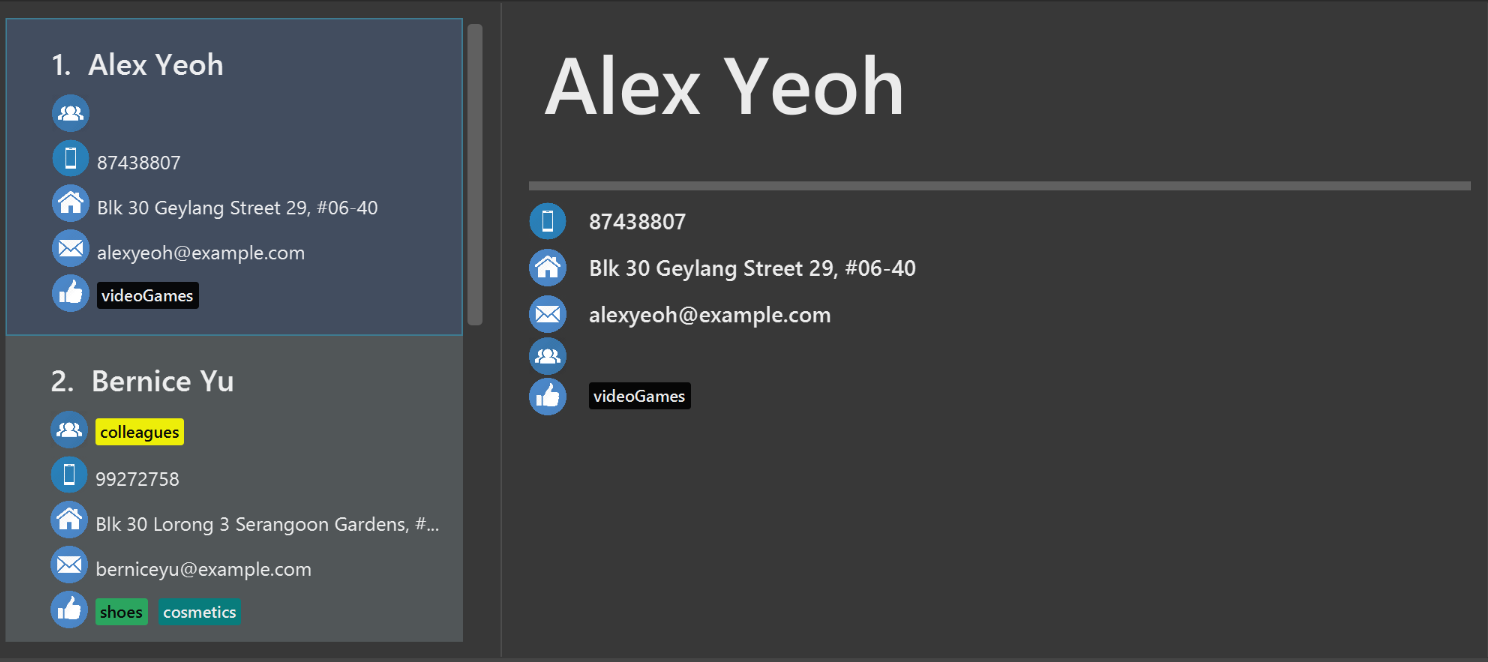
These changes will be reflected in the list of persons, but the selected contact might still display the friends tag, as shown below.
This is because the PersonPanel needs to be refreshed after the deletion.
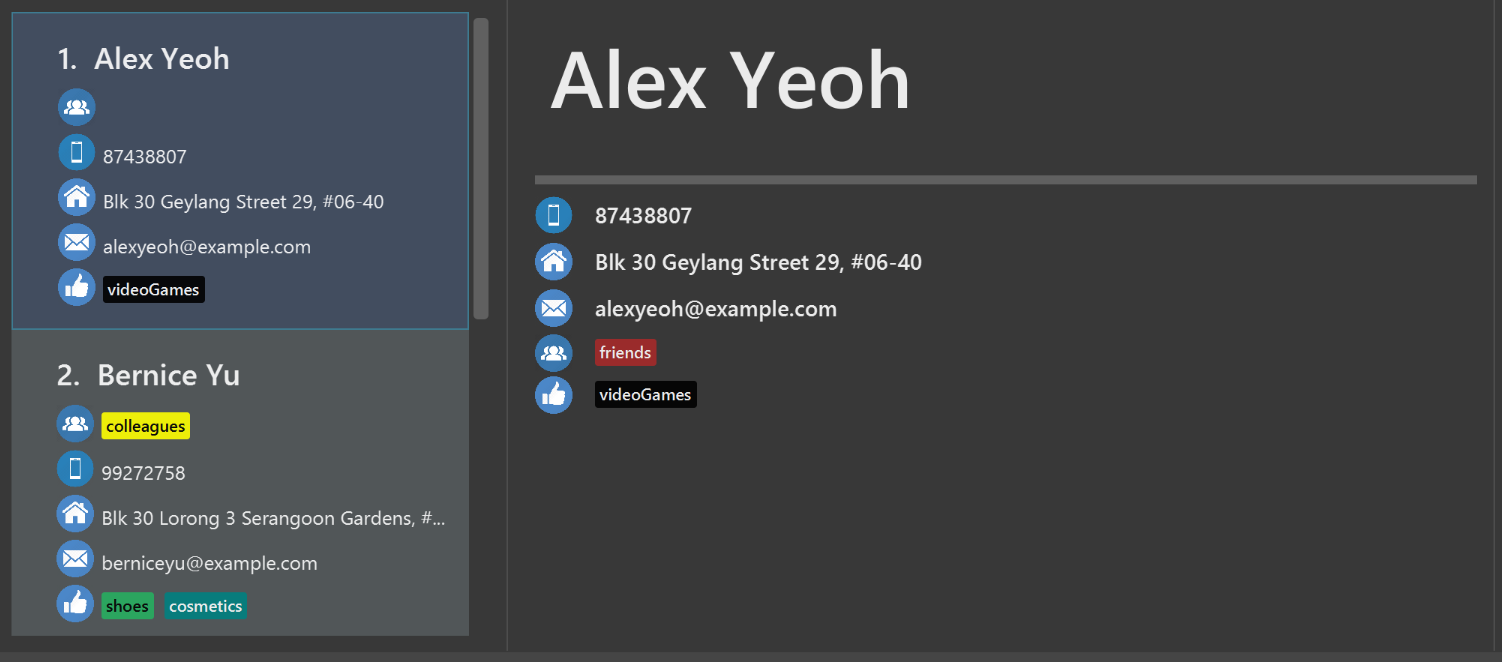
To refresh the PersonPanel, select another contact, and then select 1 again. The PersonPanel will now have the updated information.
Deleting a preference : prefdelete since v1.2
Description: Deletes the specified preference from ContactSails.
Command Alias: pd
Example:
The figure below shows ContactSails, with the 2nd contact selected.
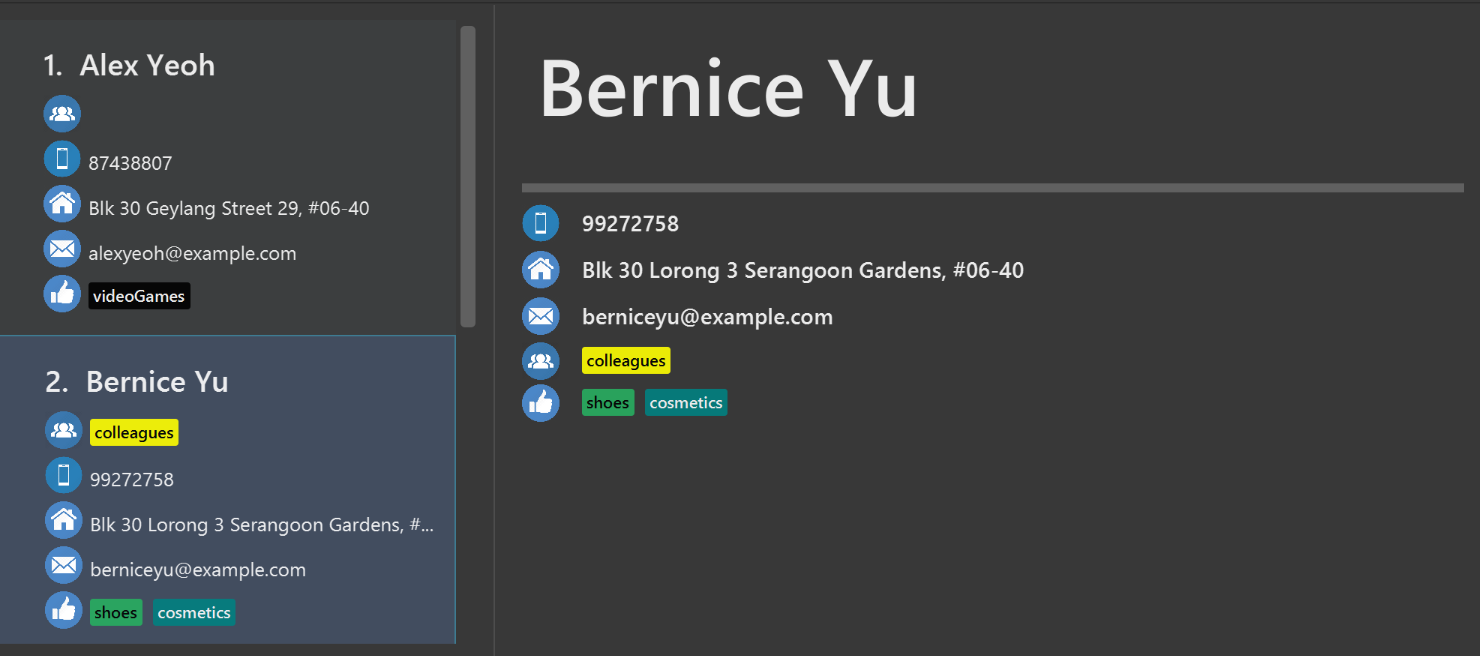
Type prefdelete shoes OR pd shoes into the Command Box.
All persons in ContactSails with the preference shoes will have the preference removed from their contact.
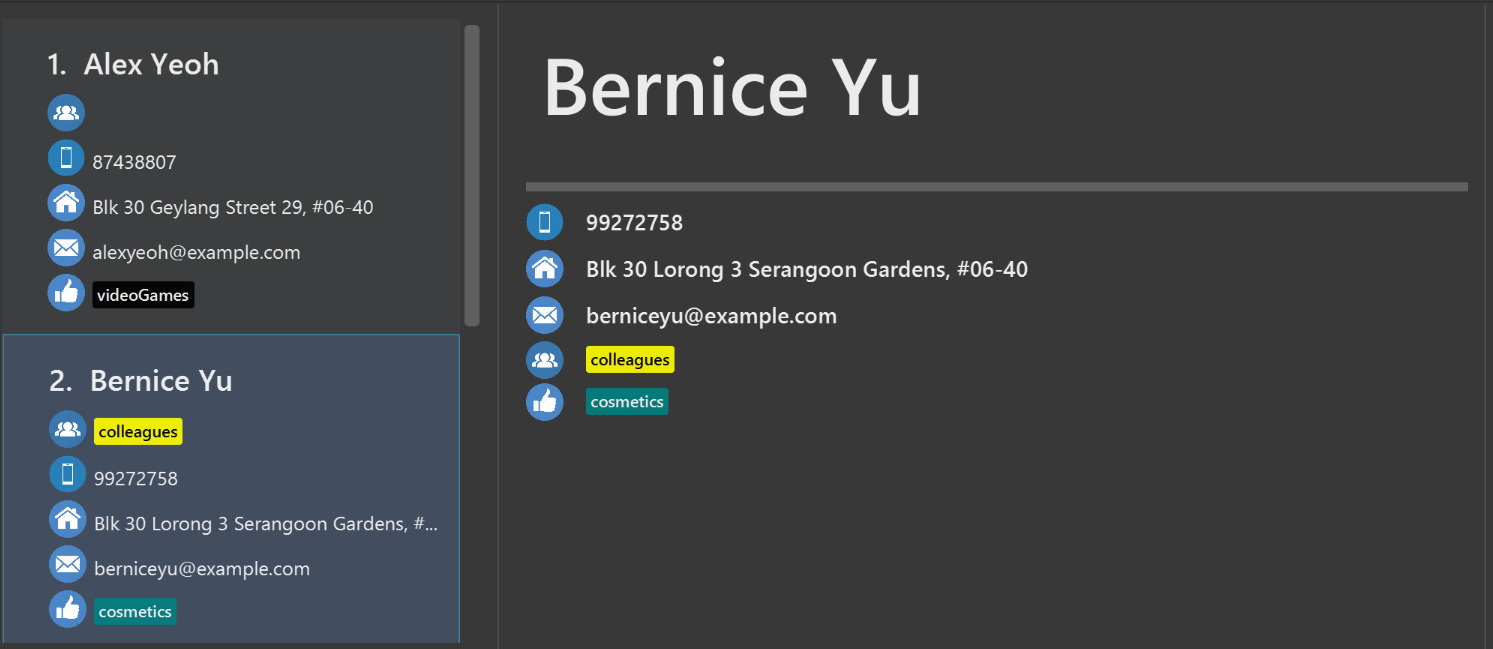
These changes will be reflected in the list of persons, but the selected contact might still display the shoes tag, as shown below.
This is because the PersonPanel needs to be refreshed after the deletion.
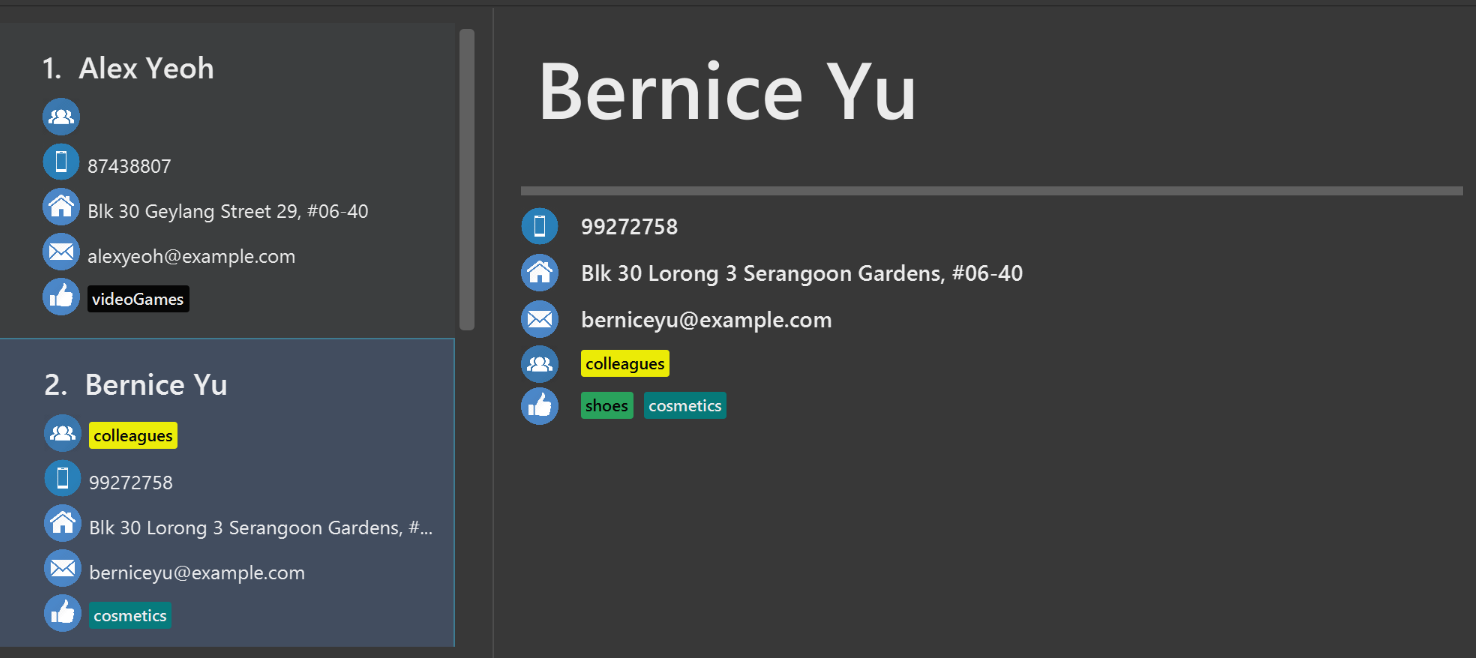
To refresh the PersonPanel, select another contact, and then select 2 again. The PersonPanel will now have the updated information.
Contributions to the Developer Guide
Given below are sections I contributed to the Developer Guide. They showcase my ability to write technical documentation and the technical depth of my contributions to the project. |
I contributed to the writing of Person Panel in the developer guide.
Person Panel
The PersonPanel replaces the previous BrowserPanel, and is called upon using the methods in CenterPanel.
PersonPanel will be used to display contact’s information, groups and preferences depending on user’s actions.
Layout Implementation
The specifications for the layout of PersonPanel is in PersonPanel.fxml. Figure 22 shows the visual layout of the PersonPanel.
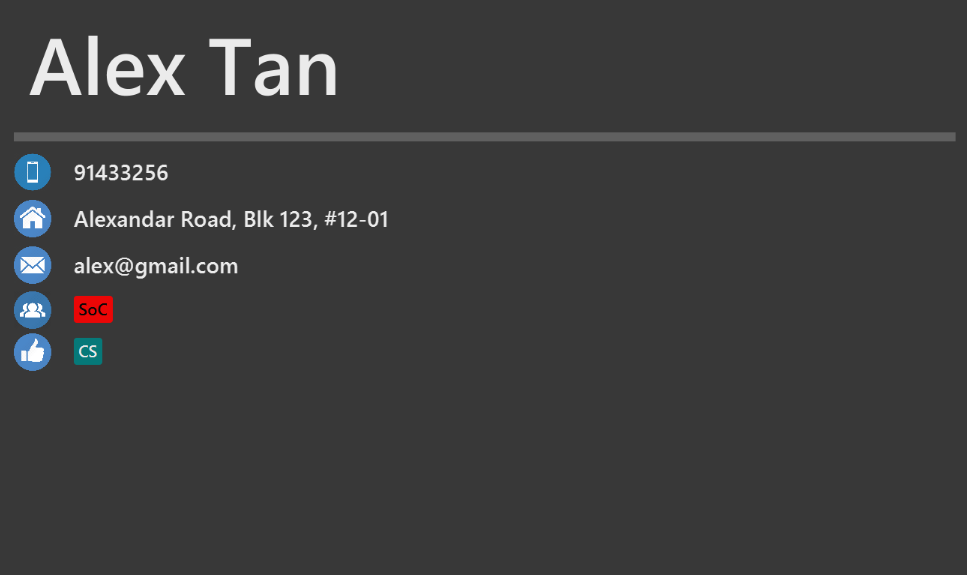
Notably, the contact’s group and preferences are coloured as these are important information to the user. We plan to implement more features for v2.0, such as a profile picture for the contact.
Current Implementation
By utilising the EventsCenter, PersonPanel is able to display contact’s particulars, its
groups and preferences when its respective PersonCard is selected.
The following 2 code snippets will show its implementation.
Code Snippet 1 : handlePersonPanelSelectionChangedEvent(PersonPanelSelectionChangedEvent event)
public void handlePersonPanelSelectionChangedEvent(PersonPanelSelectionChangedEvent event) {
    loadBlankPersonPage();
    logger.info(LogsCenter.getEventHandlingLogMessage(event));
    selectedPersonCard = event.getNewSelection();
    person = selectedPersonCard.person;
    loadPersonPage(person);
}
Whenever a contact is selected, the event handlePersonPanelSelectionChangedEvent is triggered. Once the event is triggered,
the method will obtain its respective PersonCard variable and a Person variable, which
contains the information of the contact. The person variable will be passed
into the method loadPersonPage(Person person), which is code snippet 2.
Code Snippet 2: loadPersonPage(Person person)
private void loadPersonPage(Person person) {
    name.setText(person.getName().fullName);
    phone.setText(person.getPhone().toString());
    address.setText(person.getAddress().toString());
    email.setText(person.getEmail().toString());
    person.getGroupTags().forEach(tag -> {
        Label tagLabel = new Label(tag.tagName);
        tagLabel.getStyleClass().add(PersonCard.getGroupTagColorStyleFor(tag.tagName));
        groups.getChildren().add(tagLabel);
    });
    person.getPreferenceTags().forEach(tag -> {
        Label tagLabel = new Label(tag.tagName);
        tagLabel.getStyleClass().add(PersonCard.getPrefTagColorStyleFor(tag.tagName));
        preferences.getChildren().add(tagLabel);
    });
    setIcons();
    setImageSizeForAllImages();
}
The Person variable that is passed into loadPersonPage will be used to extract the
contact’s information for display. After which, the UI of the PersonPanel will be updated
accordingly to reflect the changes.
| No contact information will be displayed upon opening the application as no contact is selected. |
To better illustrate the code snippets, the following is a high level sequence diagram when the user
selects a contact found in PersonListPanel.
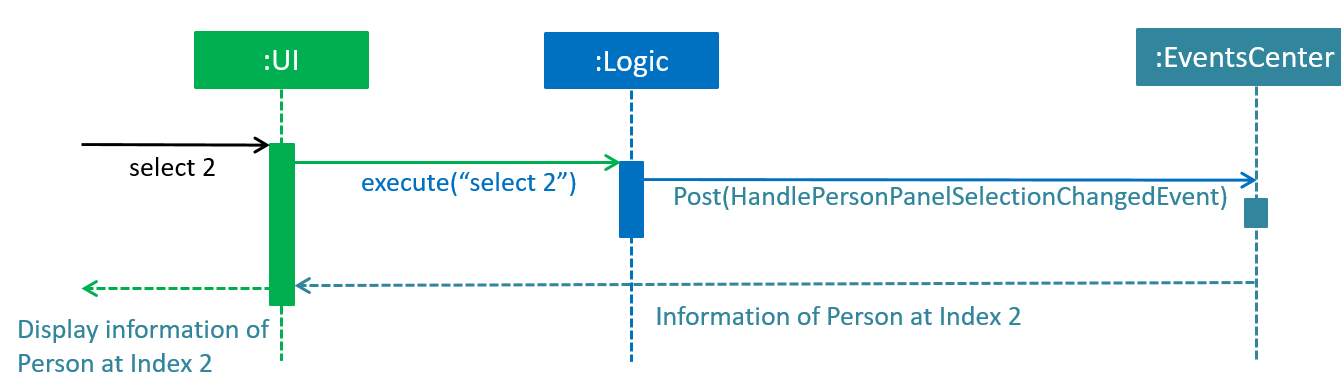
When a contact is selected using a mouse or a command in PersonListPanel, this will result in EventsCenter
returning a Person of the selected contact, which then displays the contact information in PersonPanel.
Design Considerations
Aspect: Display of tags in PersonPanel (and PersonCard)
-
Alternative 1 (current choice): Tags are coloured randomly.
-
Pros: It is easier to differentiate between tags through the colours.
-
Cons: It may be confusing as tag colours will be changed for each new instance of the application.
-
-
Alternative 2: Tags to be kept the same colour as intended.
-
Pros: There is no work to be done.
-
Cons: Users will take a longer time to differentiate the tags.
-
Aspect: Display of contact’s information
-
Alternative 1 (current choice): It is to replace BrowserPanel with a PersonPanel which displays all information of the chosen contact.
-
Pros: We can add more features into PersonPanel that the BrowserPanel is unable to achieve.
-
Cons: PersonPanel will not be able to display web pages, for instance the contact’s social media web page.
-
-
Alternative 2: It is to keep the BrowserPanel and use HTML files to display contact’s information.
-
Pros: There isn’t a need to modify the existing code but to edit the HTML files to display contact’s information.
-
Cons: It may take a long time to implement and there are other important issues.
-