Overview
ContactSails is built upon AddressBook - Level 4, a desktop address book application used for teaching Software Engineering principles. It has new features that serve to meet the needs of salespersons from small companies or home-grown businesses with customers from various social media platforms. The user interacts with it using a CLI, and it has a GUI created with JavaFX. It is written in Java, and has about 10 kLoC.
Summary of contributions
-
Major enhancement: The ability to display a calendar within the application and manage calendar entries.
-
Functionality: It allows the user to create, delete and edit entries, which represent events such as meetings or deadlines. Existing entries are displayed in the calendar interface at their respective time slots. The user can switch between calendar views to view entries within a day, a week or a month.
-
Justification: The calendar can be used to display any incoming events or deadlines to help salespersons to plan their schedules carefully. It provides a quicker way for salespersons, who prefer typing to using a mouse, to manage their calendar entries.
-
Highlights: This enhancement affects existing commands and commands to be added in future. It required an in-depth analysis of design alternatives. The implementation too was challenging as it required changes to existing commands.
-
Credits: CalendarFX is used to provide the calendar to display entries.
-
-
Minor enhancement: Separation of Tag class into child classes, Group and Preference, and ability to find persons based on their groups and preferences.
-
Justification: Provides a better way to find contacts based on what they tend to buy, or the social media platform they tend to use.
-
-
Code contributed: [Functional code] [Test code]
-
Other contributions:
-
Enhancements to existing features:
-
Removed unused tags in tag list of address book (Pull request #38)
-
-
Documentation:
-
Community:
-
PRs reviewed (with non-trivial review comments): #165, #98, #83, #52
-
Reported bugs and suggestions for other teams in the class (examples: Issue #120, Issue #128, Issue #104)
-
-
Tools:
-
Integrated a third party library (CalendarFX) to the project (#42)
-
-
Contributions to the User Guide
Given below are sections I contributed to the User Guide. They showcase my ability to write documentation targeting end-users. |
Viewing the Calendar
This section describes commands related to viewing the calendar in ContactSails. The calendar is displayed at the CenterPanel of the interface when you enter any of the commands in this section. Figure 20 below shows how the calendar looks like.
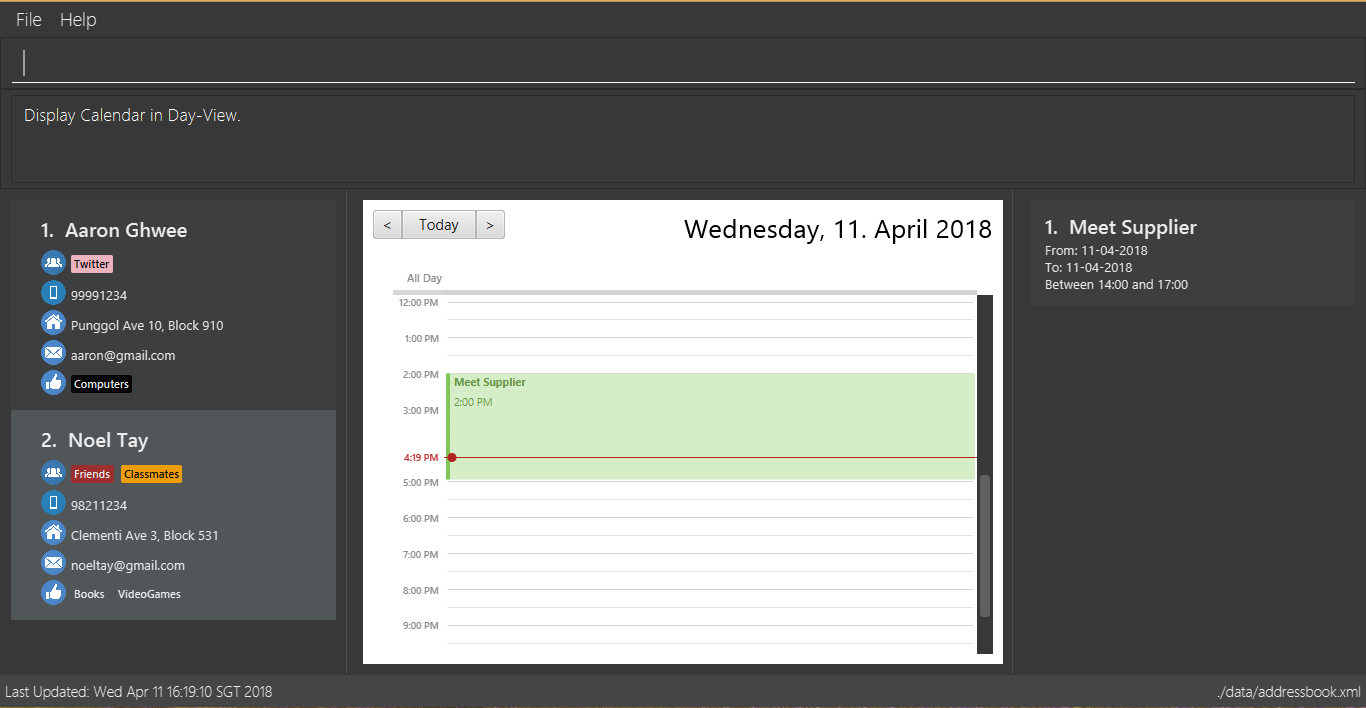
In Figure 20, the calendar is set to Day-view, hence it displays all calendar entries that occur in the displayed date (11 April 2018, Wednesday). In the calendar, calendar entries appears as colored blocks, such as the green block in Figure 20, indicating the title and starting time of the entry.
You can change the viewing format of the calendar using calendar command to switch to either of the 3 views; Day-view, Week-view and Month-view.
To change the displayed date, you can enter calendarjump command to view your desired date.
Displaying the calendar : calendar since v1.3
Description: Displays the calendar in the Center Panel in specified viewing format.
Command Alias: cal
Example:
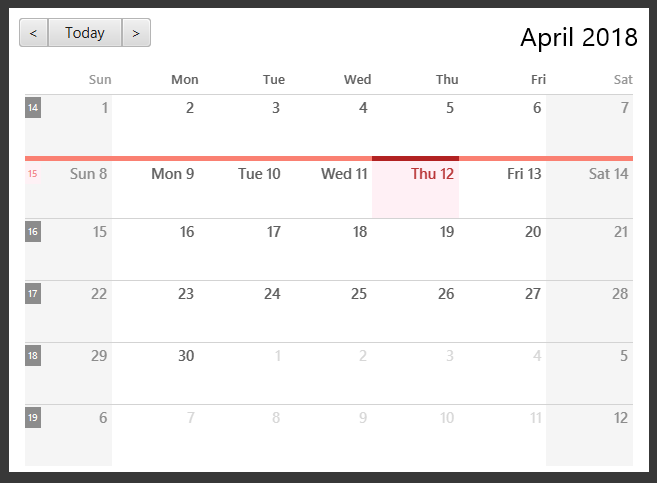
To set display of calendar to Month-view, execute the following command:
Type calendar month OR cal month into the Command Box.
This shows calendar in Month-view as seen in the figure below.
Go to next page in the calendar : calendarnext since v1.5rc
Description: Displays next page of current displayed date in calendar.
Command Alias: calnext
Go to previous page in the calendar : calendarback since v1.5rc
Description: Displays previous page of current displayed date in calendar.
Command Alias: calback
Display current day in the calendar : calendartoday since v1.5rc
Description: Displays today’s date in the calendar.
Command Alias: caltoday
Display given date in the calendar : calendarjump since v1.5
Description: Displays the given date in calendar.
Command Alias: caljump
Managing Calendar Entries
This section describes commands you can use to manage calendar entries in ContactSails.
You can use calendar entries to represent events, deadlines or meetings.
A calendar entry has a title, start date, end date, start time and end time. These entries will be displayed in the calendar in the Center Panel and calendar entry list in the Right Panel. Figure 22 below shows how a calendar entry appears in the calendar entry list.
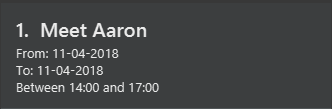
In Figure 22, calendar entry has an index of 1, indicating its position in the list. Beside the index is the title of the calendar entry (Meet Aaron). The description indicates the entry’s starting date (11-04-2018) and ending date (11-04-2018). The last sentence indicates the starting time (14:00) and ending time. (17:00) of the entry.
Adding entries to calendar entry list : entryadd since v1.3
Description: Adds an entry to the calendar entry list and displays it in the calendar.
Command Alias: ea
Example:
Type entryadd t/meet with boss ed/05-05-2020 st/10:00 et/12:00 OR
ea t/meet with boss ed/05-05-2020 st/10:00 et/12:00 into the Command Box.
This creates a calendar entry with listed title, starts from 10:00 am and ends at 12:00 noon on 5 May 2020.
Editing entries in calendar entry list : entryedit since v1.5rc
Description: Edits an existing entry in the calendar entry list and displays the edited entry in the calendar.
Command Alias: ee
Example:
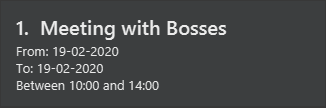
The calendar entry list currently has the following calendar entry at index 1:
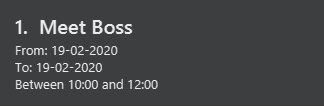
To edit this entry, type entryedit 1 t/Meeting with Bosses et/14:00 OR ee 1 t/meet with bosses et/1400 into the Command Box.
This edits the title and end time of 1st entry in entry list to Meeting with Bosses and 1400 respectively.
The result is shown in the figure below.
Deleting entries in calendar entry list : entrydelete since v1.4
Description: Deletes an existing entry in Calendar entry list.
Command Alias: ed
Example:
Type entrydelete 1 OR ed 1 into the Command Box.
This deletes the entry at index 1 of most recent entry listing.
Listing all calendar entries : entrylist since v1.4
Description: Shows a list of all calendar entries in ContactSails.
Command Alias: el
Clearing all entries in list of entries : entryclear since v1.5
Description: Clears all entry list entries from ContactSails.
Command Alias: ec
Contributions to the Developer Guide
Given below are sections I contributed to the Developer Guide. They showcase my ability to write technical documentation and the technical depth of my contributions to the project. |
Calendar and Entry tracking
Users can create, edit and delete entries, which can represent events such as meetings or deadlines. ContactSails has a calendar interface that displays existing entries for better visualisation of the user’s schedule.
Current Implementation
ContactSails uses CalendarFX’s calendar interface. The Model component manages a list of entries, and this list of entries will synchronise with
the calendar’s internal list of entries.
Calendar Entries
CalendarEntry represents an entry created by users.
A CalendarEntry is implemented in the following manner:
public class CalendarEntry {

    private final String entryTitle;
    private final StartDate startDate;
    private final EndDate endDate;
    private final StartTime startTime;
    private final EndTime endTime;


    // ... CalendarEntry attribute getters and setters ...

}
The following is a brief description of the attributes of CalendarEntry:
-
entryTitle: Represents title of entry.
-
startDate: Represents starting date of the entry in DD-MM-YYYY format.
-
endDate: Represents ending date of the entry in DD-MM-YYYY format.
-
startTime: Represents starting time of the entry in HH:MM format (24-Hour format).
-
endTime: Represents ending time of the entry in HH:MM format (24-Hour format).
Entry management is facilitated by CalendarManager residing in ModelManager.
It supports the adding, removing and editing of CalendarEntry(e.g. addCalendarEntry, deleteCalendarEntry) and maintains a UniqueCalendarEntryList to store CalendarEntry.
The following diagram shows class diagram of Model Component related to CalendarEntry.
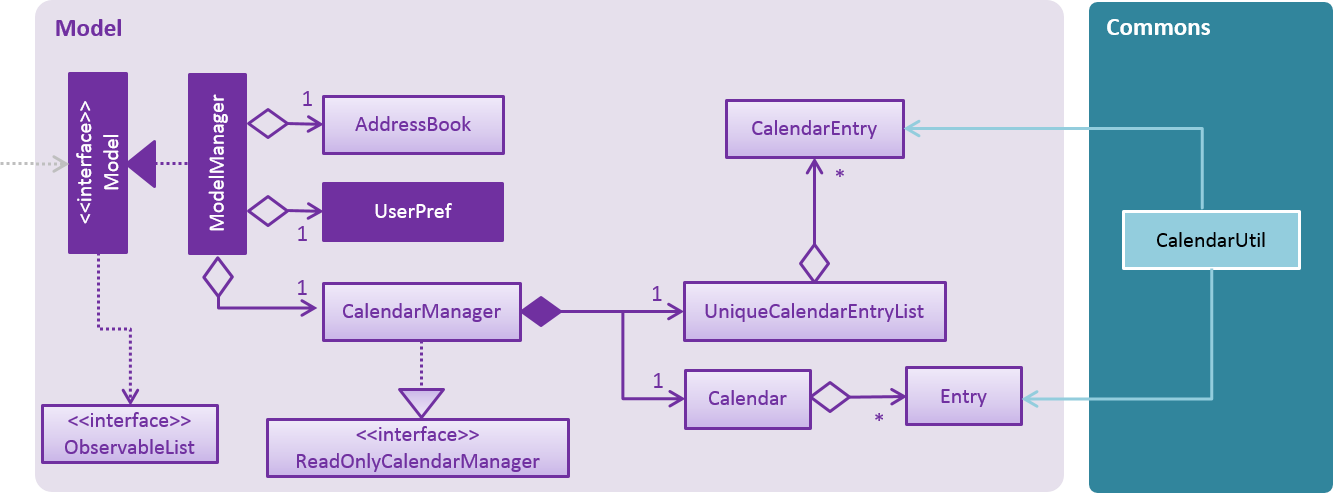
Model and CommonsIn the Figure 34, ModelManager contains an instance of CalendarManager. ModelManager calls the functions in CalendarManager to manage CalendarEntries stored in it.
CalendarManager in turn calls methods in UniqueCalendarEntryList to add, remove or edit CalendarEntries stored in it.
CalendarManager contains an instance of Calendar belonging to CalendarFX’s library. Calendar stores Entry, as defined in CalendarFX’s library.
CalendarEntry is converted to Entry before they can be added to Calendar via CalendarEntryConversionUtil in the Commons class.
Logic Component contains the commands required to manage user’s entries, which are AddEntryCommand, DeleteEntryCommand and EditEntryCommand.
These commands inherit from UndoableCommand and are thus can be undone via the UndoCommand.
The sequence diagram below shows how adding an entry works:
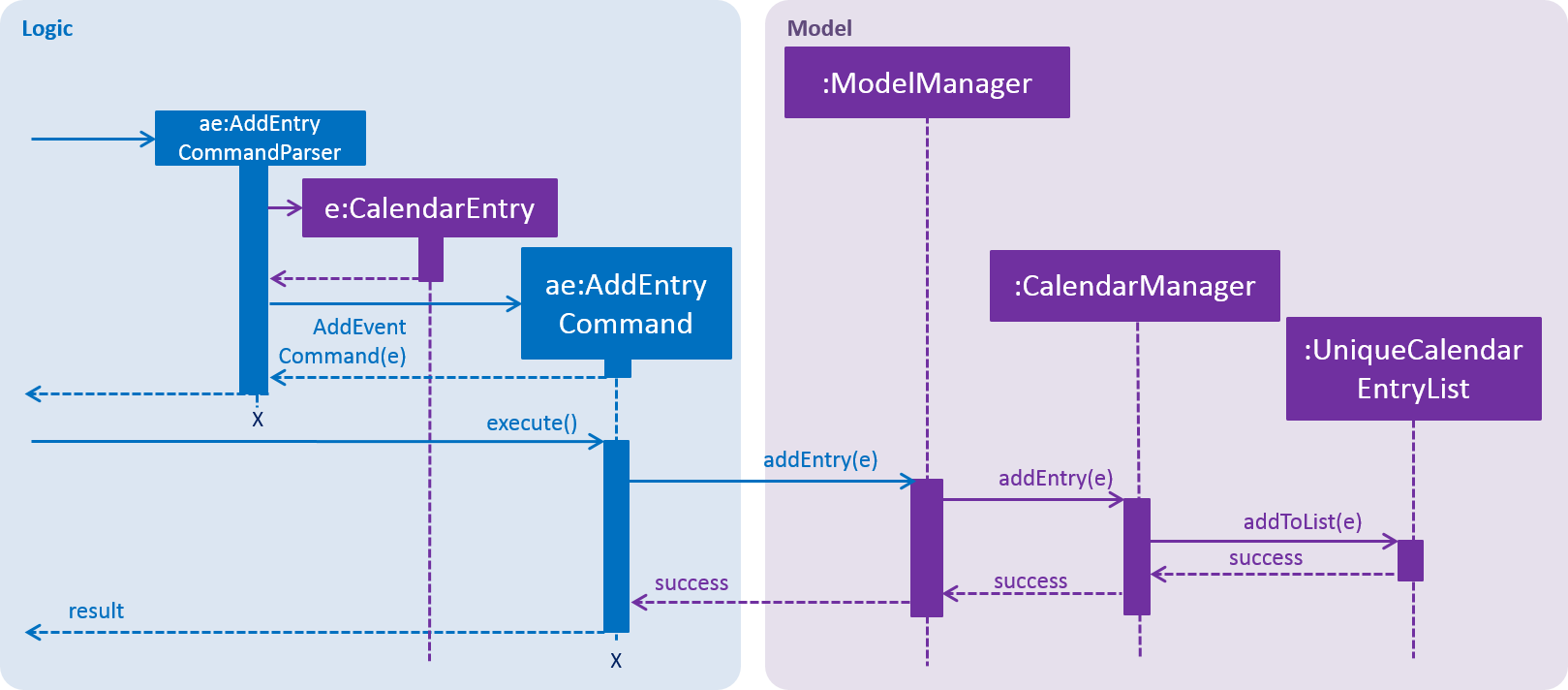
In Figure 35, when a user enters the command to add an entry, AddEntryCommandParser is invoked which creates a CalendarEntry based on user input. The parser then creates AddEntryCommand passing the CalendarEntry to it.
When AddEntryCommand is executed, CalendarEntry is passed from AddEntryCommand to ModelManager and to CalendarManager, which adds it to UniqueCalendarEntryList.
The CalendarEntry is then converted to Entry to be added to Calendar (not shown in diagram) and control is eventually returned to the user.
Storing of CalendarEntry data is managed by CalendarManagerStorage within Storage Component.
CalendarEntry is converted to XmlAdaptedCalendarEntry, which can be stored in XmlSerializableCalendarManager.
XmlSerializableCalendarManager is stored in a .xml file using XmlFileStorage.
Calendar Interface and Center Panel
CalendarView within CalendarFX’s library uses the Calendar within CalendarManager in Model to display all entries stored within Calendar.
CalendarPanel residing in Ui component creates an instance of CalendarView to manage the display of the calendar.
The following code snippet shows how CalendarPanel is initialised.
public class CalendarPanel extends UiPart<Region> {

    private static final String FXML = "CalendarPanel.fxml";

    private final Logger logger = LogsCenter.getLogger(this.getClass());

    private final CalendarView calendarView;
    private final CalendarSource calendarSource;

    @FXML
    private StackPane calendarPanelHolder;

    public CalendarPanel(Calendar calendar) {
        super(FXML);
        calendarView = CalendarFxUtil.returnModifiedCalendarView();
        calendarSource = new CalendarSource();

        initialiseCalendar(calendar);
        createTimeThread();
    }

    // Methods to initialise calendar, change display of calendar, etc.
}
When CalendarPanel is initialised, CalendarFxUtil returns an instance of CalendarView that is modified to remove unused features within CalendarView, such as the ability to print the calendar.
CalendarSource is required to store the Calendar from Model and CalendarView in turn stores CalendarSource before it can display contents of Calendar.
The setting up of CalendarSource and CalendarView is done by initialiseCalendar(calendar). createTimeThread() creates a Thread that updates the timeProperty() in CalendarView every 10 seconds,
ensuring that the current time displayed within the calendar interface matches the actual time the user is using the application.
Any changes made to Calendar in Model will automatically be shown via the CalendarView as Calendar is a class-level member in CalendarManager that is passed to CalendarPanel.
updateCalendar() in CalendarManager clears all entries within Calendar and adds CalendarEntries converted to Entries to Calendar.
As the placement of CalendarPanel coincides with that of PersonPanel at the center of the GUI interface of ContactSails, CenterPanel is used in place to switch between displaying contents of the two panels.
The following code snippet shows how CenterPanel is initialised.
public class CenterPanel extends UiPart<Region> {

    private static final String FXML = "CenterPanel.fxml";

    private CalendarPanel calendarPanel;

    private PersonPanel personPanel;

    @FXML
    private StackPane centerPlaceholder;

    public CenterPanel(Calendar calendar) {
        super(FXML);

        personPanel = new PersonPanel();
        calendarPanel = new CalendarPanel(calendar);

        displayPersonPanel();
        registerAsAnEventHandler(this);
    }
    // Methods to handle BaseEvents, display either panels, etc.
}
CenterPanel contains one instance of CalendarPanel and PersonPanel. PersonPanel is displayed upon initialising CenterPanel by calling displayPersonPanel().
displayPersonPanel() is also called when BaseEvents related to PersonPanel is received by CenterPanel.
The following code snippet below shows how CenterPanel displays PersonPanel.
public void displayPersonPanel() {
        if (!centerPlaceholder.getChildren().contains(personPanel.getRoot())) {
            centerPlaceholder.getChildren().clear();
            centerPlaceholder.getChildren().add(personPanel.getRoot());
        }
    }
Based on the snippet, CenterPanel checks whether centerPlaceholder contains root node of PersonPanel.
If it does not, centerPlaceholder` will clear any existing child nodes and add root node of PersonPanel, which causes PersonPanel to be displayed.
CenterPanel displays CalendarPanel with displayCalendarPanel(), which is written similar to displayPersonPanel().
CenterPanel subscribes to BaseEvents related to the CalendarPanel and PersonPanel, such as ChangeCalendarPageRequestEvent and PersonPanelSelectionChangedEvent.
Thus, BaseEvents received by CenterPanel can be split into two categories, one meant for CalendarPanel, and the other for PersonPanel.
The following sequence diagram below shows how ChangeCalendarPageRequestEvent is handled by CenterPanel.
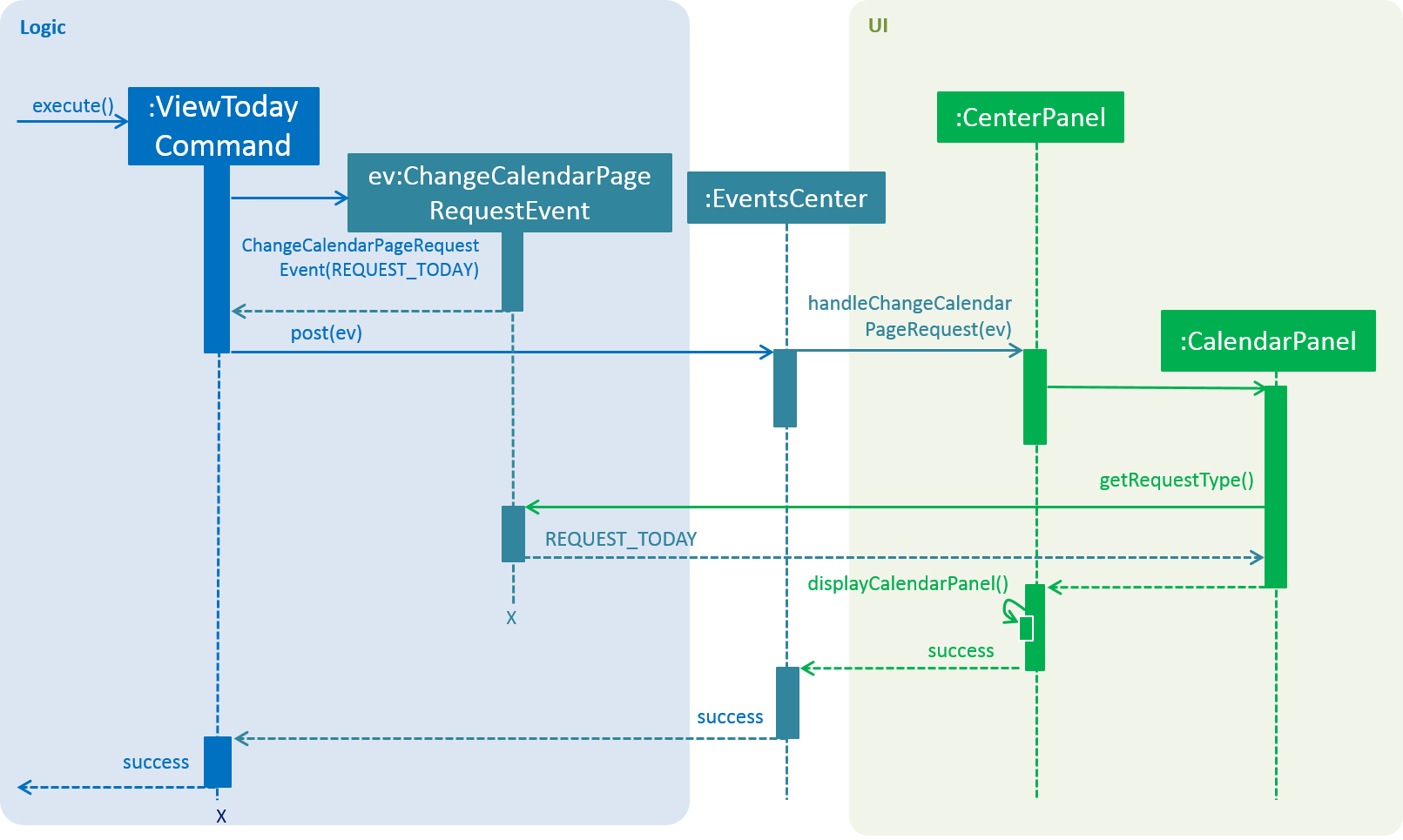
ViewTodayCommand posting ChangeCalendarPageRequestEventIn Figure 36, ViewTodayCommand posts a new ChangeCalendarPageRequestEvent to the EventsCenter.
CenterPanel handles the event by calling handleChangeCalendarPageRequestEvent() in CalendarPanel before calling displayCalendarPanel().
In CalendarPanel, getRequestType() is called on the event to check the page that is requested.
Given that REQUEST_TODAY is the requestType of the event, CalendarView will switch the displayed page to today.
The calendar will be displayed at CenterPanel as control is eventually returned to the user.
Design Considerations
Aspect: Implementation of calendar interface
-
Alternative 1 (current choice): Integrate CalendarFX to display entries while all entry data is stored locally.
-
Pros: Doing so does not require constant Internet access to manage data of Calendar. CalendarFX can also synchronise with certain calendar applications such as Google Calendar. As less code is written to implement it, the effort required to maintain or debug is potentially lesser.
-
Cons: CalendarFX has many features that are currently not used in ContactSails. Developers who intend to use them need to decide and learn how to implement such features by themselves. ContactSails developers cannot customise the calendar itself to implement features not present in the library or modify existing features. Bugs present in the library cannot be easily fixed by non-developers of CalendarFX.
-
-
Alternative 2: Create a calendar using JavaFX to manage entries.
-
Pros: This option offers greater potential for customisation as code is entirely managed by developers.
-
Cons: There is greater probability of bugs created as implementation have to be created from scratch. As compared to using third-party libraries, substantial lines of code has to be written, thus debugging may be harder. Design of features of the calendar have to be decided by developers themselves, which requires more time and effort to implement the features.
-
Aspect: Switching between PersonPanel and CalendarPanel
-
Alternative 1 (current choice): An additional panel,
CenterPanelis used to switch between the two panels.CenterPanelsubscribesBaseEventmeant for the two panels to facilitate the switching of the panels.-
Pros: All
BaseEventsmeant for these two panels can be consolidated in one place. -
Cons: It may not be intuitive for some developers to have
CenterPanelregister forBaseEventmeant forPersonPanelandCalendarPanel.
-
-
Alternative 2:
MainWindowwill subscribe toBaseEventfor the two panels and switch between them accordingly.-
Pros: There is no need to create an additional Class to handle the switching, thus saving the resources and memory required.
-
Cons: This would violate the Single Responsibility Principle and Separation of Concerns as
MainWindowhas to manage other Ui related events such as opening the Help Window.
-